Settings · Locations
New
Skills let you automatically link your services to the staff members who can deliver them. You assign a skill to a service and to the staff members who have it: the service can then only be booked with those staff members, without assigning them one by one.
Example: the "Retirement savings advice" skill is assigned to the "Retirement review" and "Retirement savings plan" services, and to the two trained advisors. When a new advisor is trained, you give them the skill and both services are automatically assigned to them.
Accessing skills
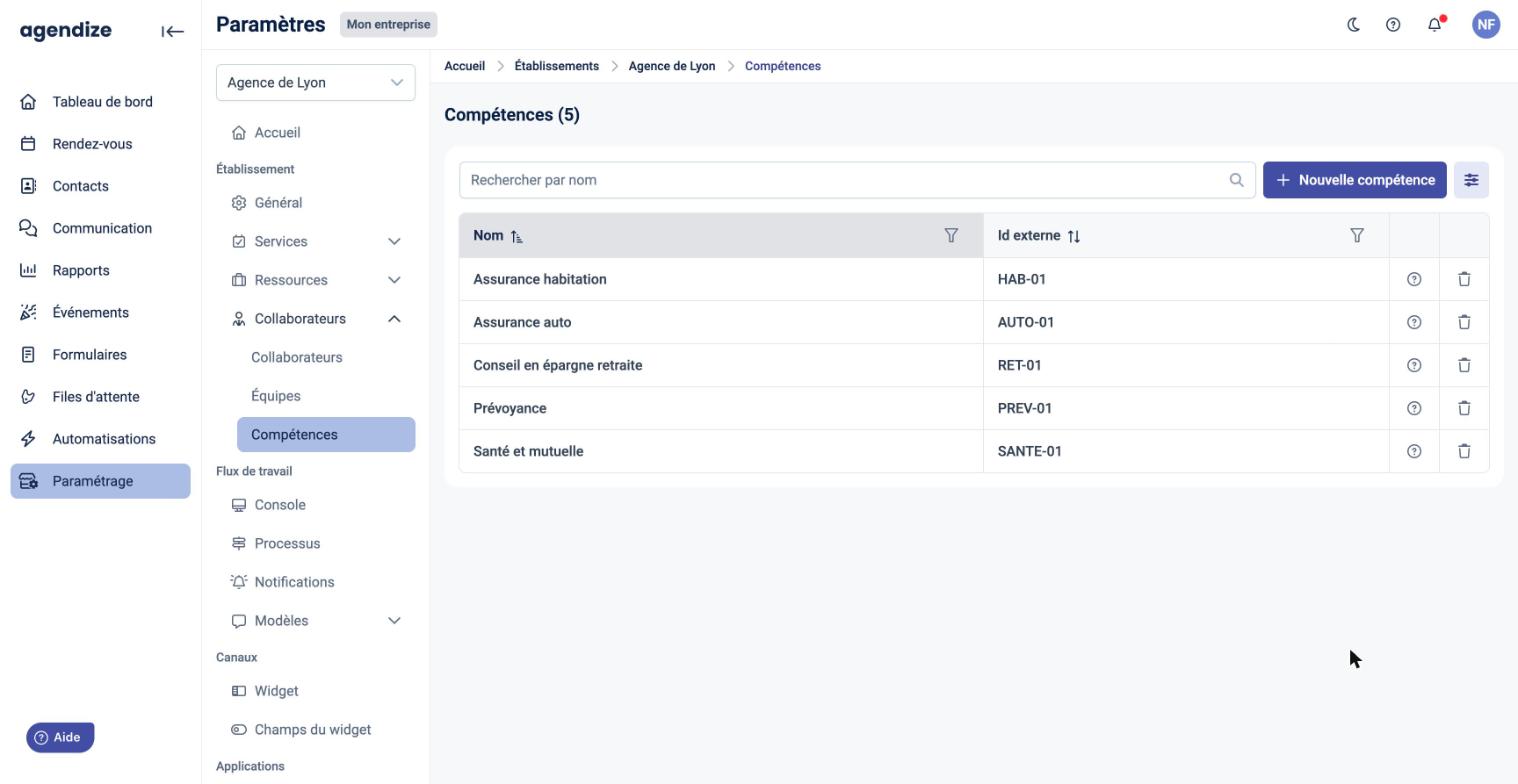
- In the side menu, click Settings, then Locations, and open the location.
- In the location menu, expand Staff and click Skills.
The list shows the location's skills with their total count. You can:
- find a skill with Search by name;
- click a row to open the skill and edit it;
- click the ? icon to see where it is used (staff members and services);
- click the trash icon to delete it.
Creating a skill
- Click + New skill.
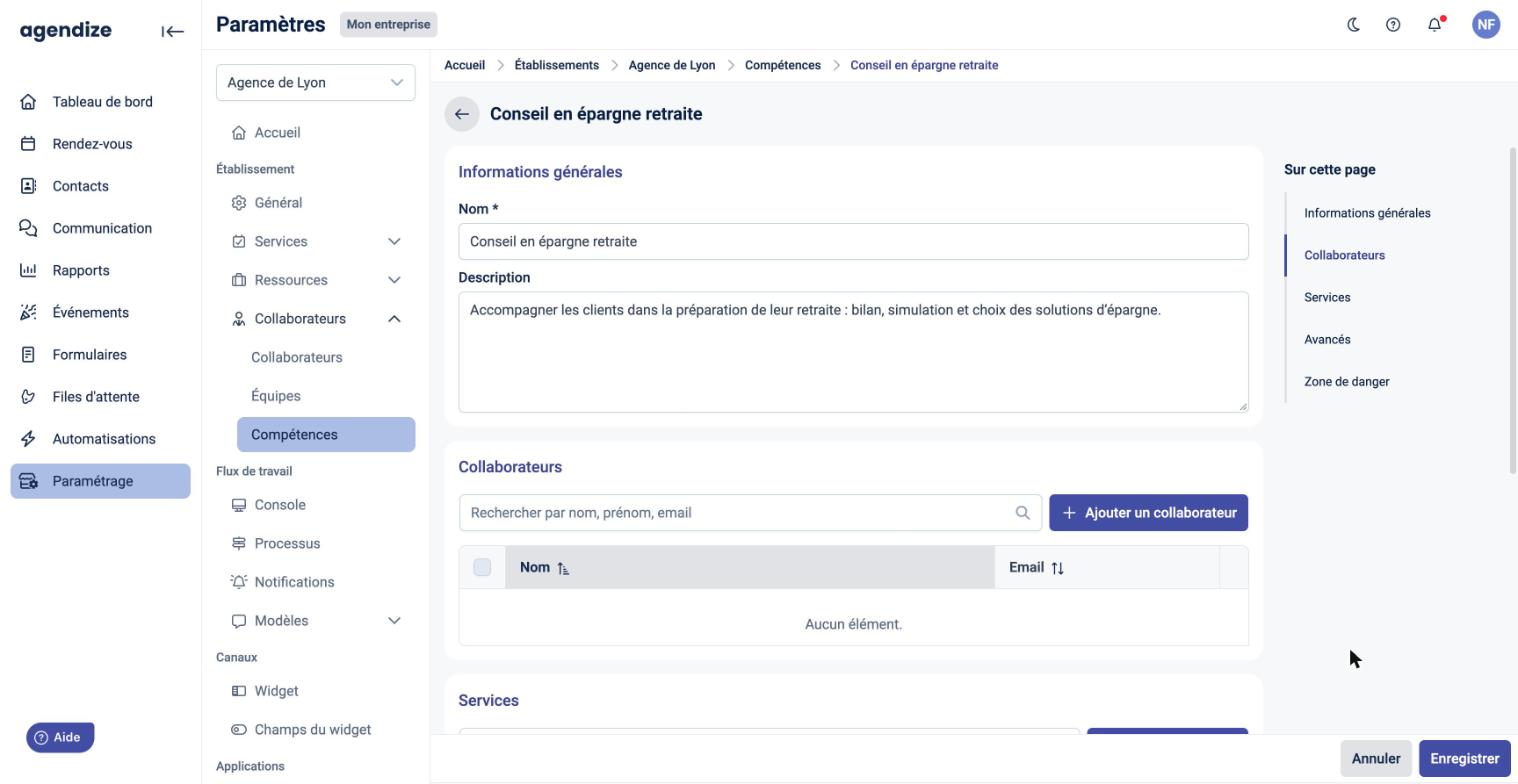
- General information section: enter the Name (required) and, if needed, a Description.
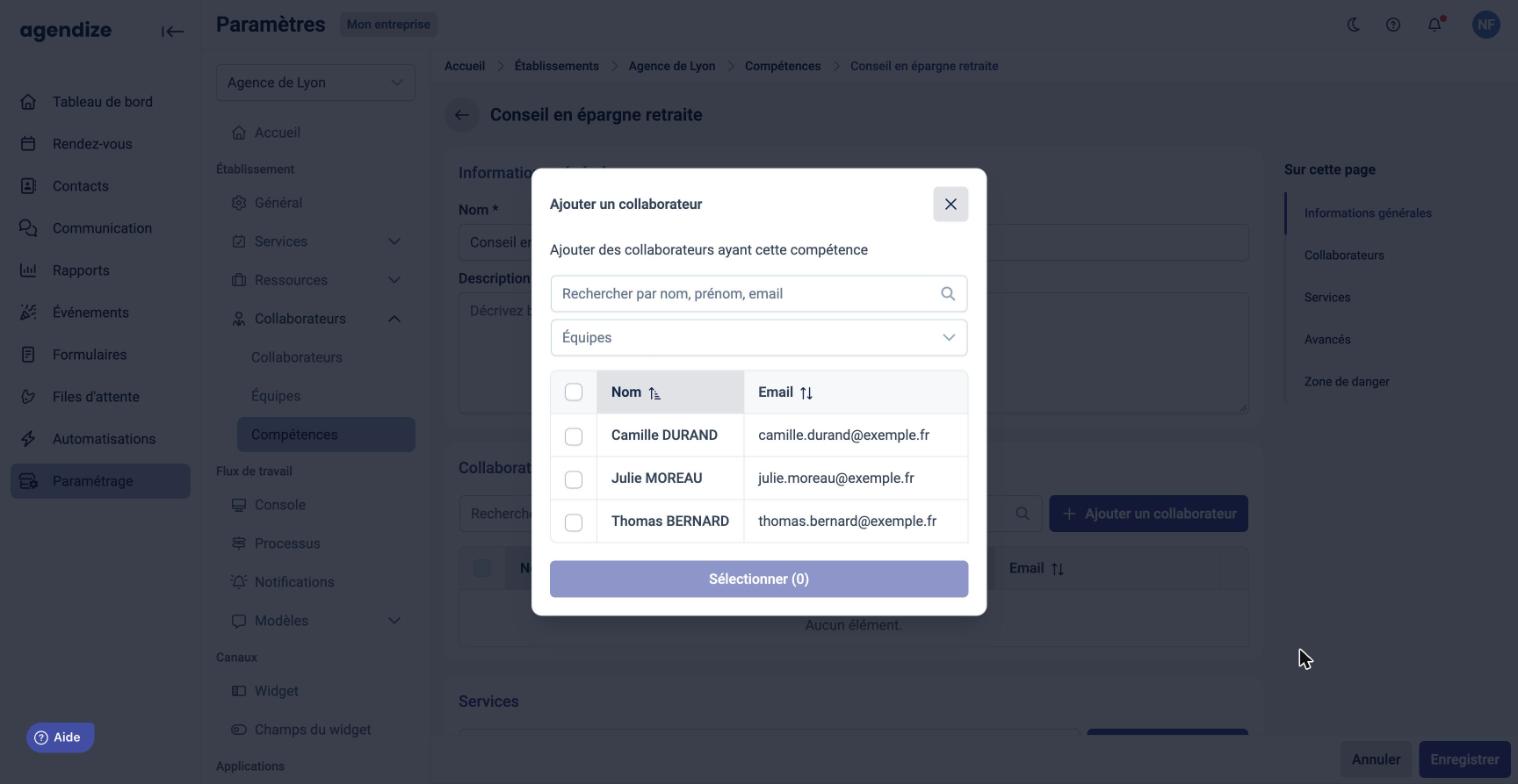
- Staff section: click Add a staff member, tick the staff members who have this skill, then click Select. The Teams filter lets you only display the staff members of one or more teams.
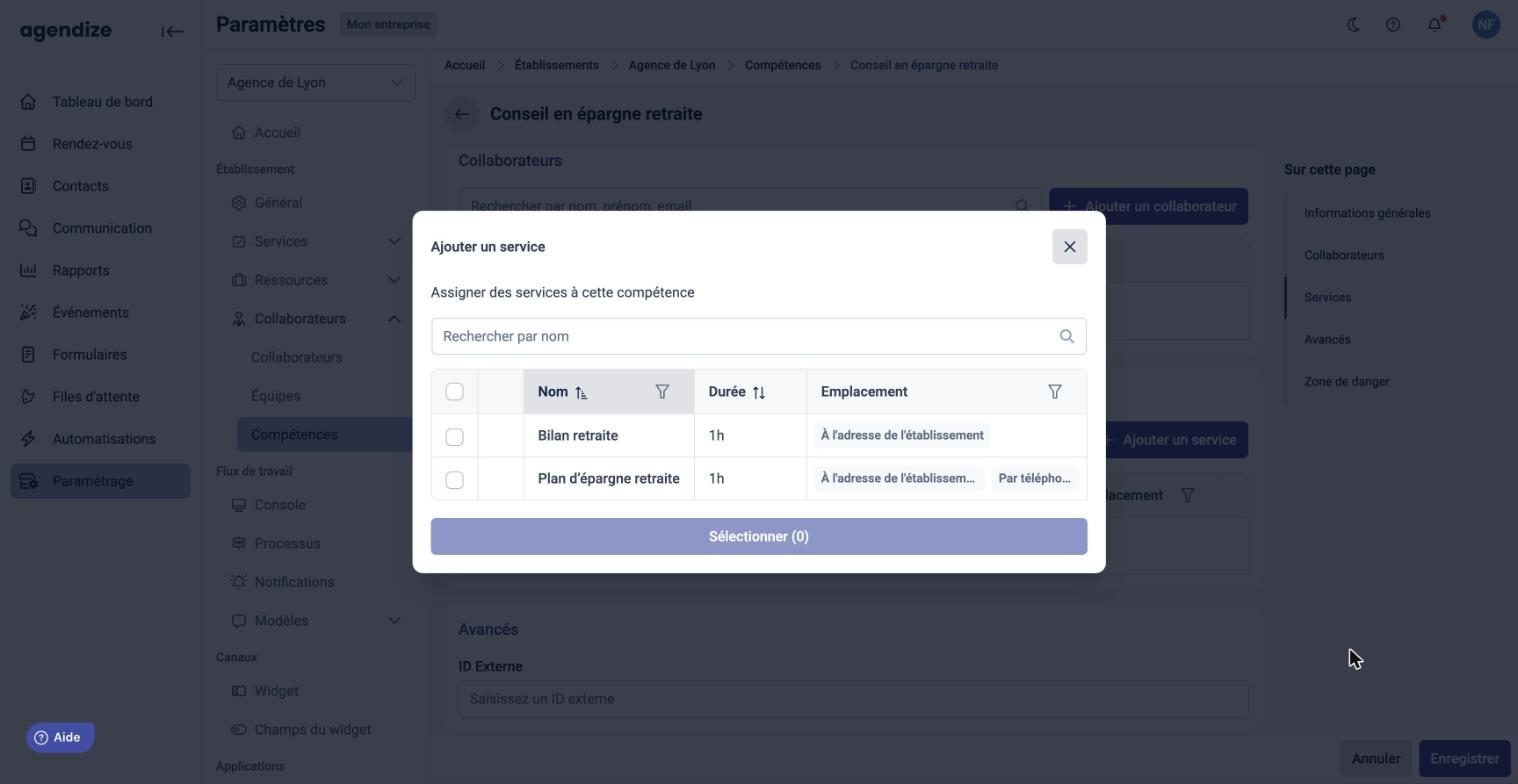
- Services section: click Add a service, tick the services that require this skill, then click Select.
- Optional: in the Advanced section, enter an External ID if you connect Agendize to a third-party tool.
- Click Save at the bottom right of the page.
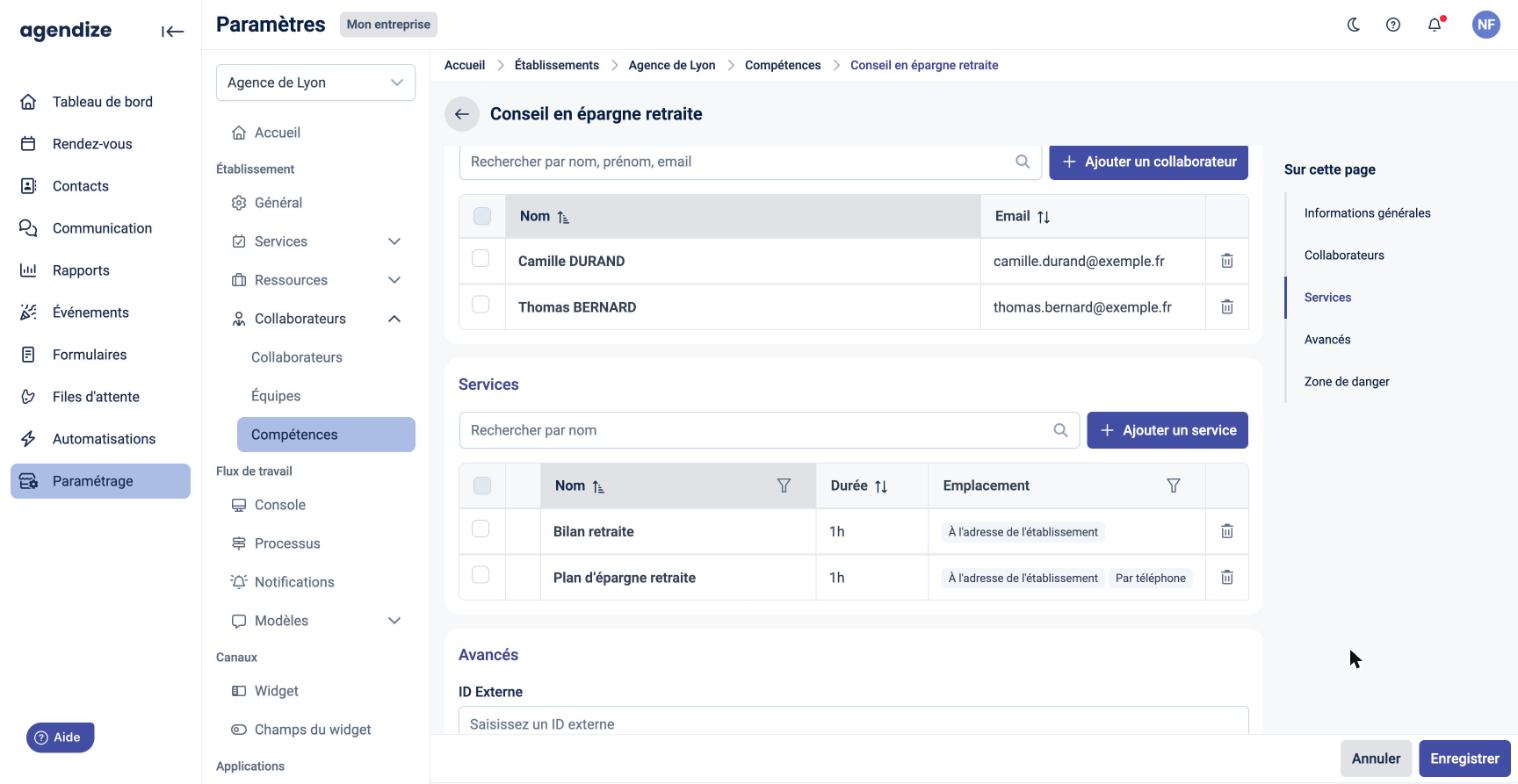
To edit a skill, open it from the list, make your changes in the same sections and click Save.
Assigning skills to a staff member
You can also start from the staff member's profile (Staff, then click the staff member). The Services section offers two modes:
- Assign services manually: you choose the staff member's services yourself, as before.
- Assign services through their skills: you select one or more Skills. The list below shows the services matching these skills; it cannot be edited directly.
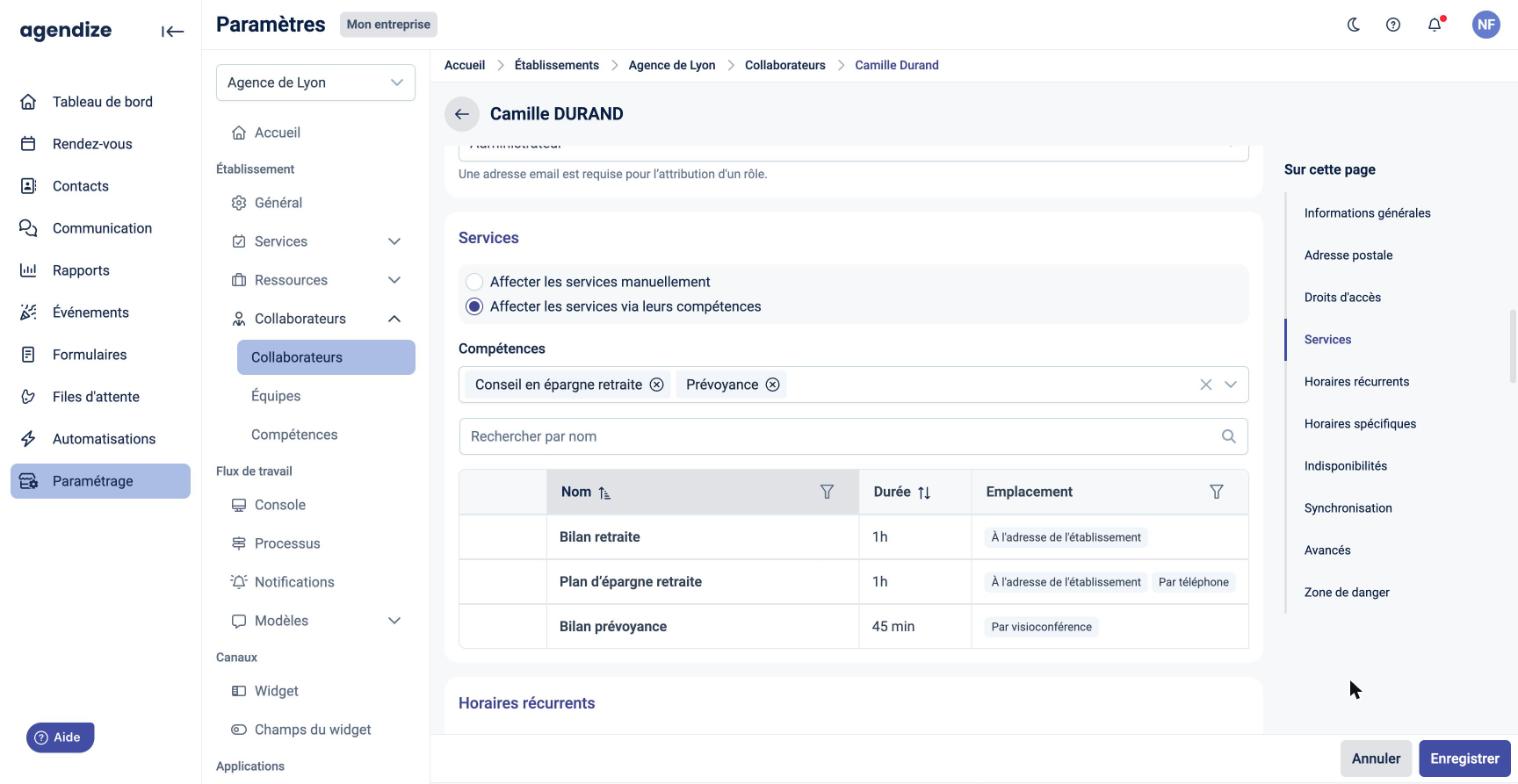
Click Save to apply the selected mode.
Assigning a skill to a service
From the service profile (Services, then click the service), the Skill field in the General information section links the service to a skill.
- Without a skill: the Staff section works as before; you add and remove staff members yourself.
- With a skill: the Staff section automatically shows the location's staff members who have this skill. It can no longer be edited from the service: to change the list, edit the staff members' skills.
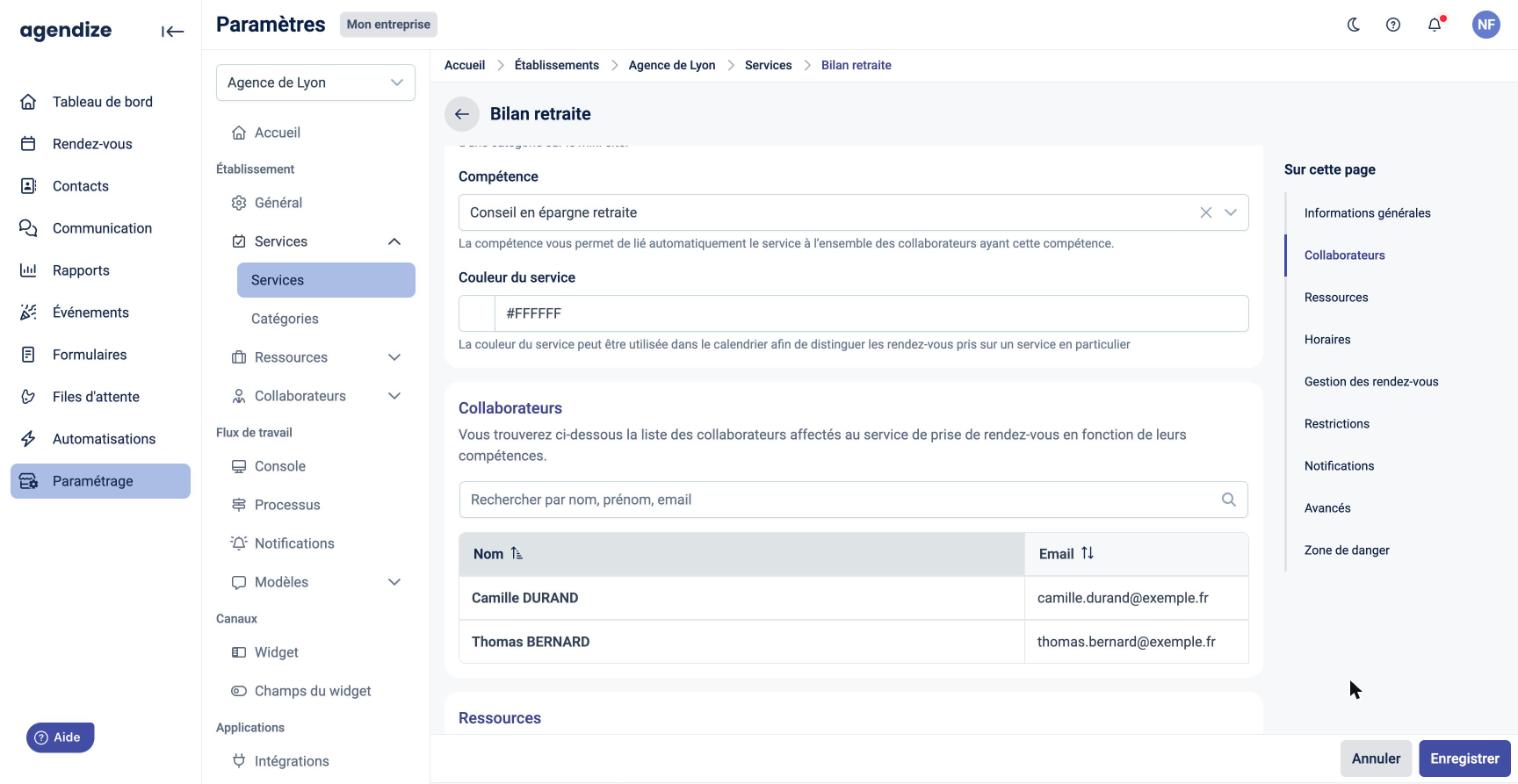
Effect on booking
When a service is linked to a skill, only the staff members who have this skill are offered for that service, in the booking widget as well as in the console. The usual rules (working hours, availability) still apply.
Deleting a skill
- Before deleting, click the skill's ? icon: the Skill usage window lists the assigned staff members and the related services.
- Click the row's trash icon, or Delete in the Danger zone section of the skill, then confirm.
Deletion is permanent: the skill is removed from the staff members and services that used it. Remember to reassign the related services.