Settings · Locations
How to Access Collaborator Management
Where to find it
Menu Settings > Locations > [your location] > Collaborators
Collaborator List
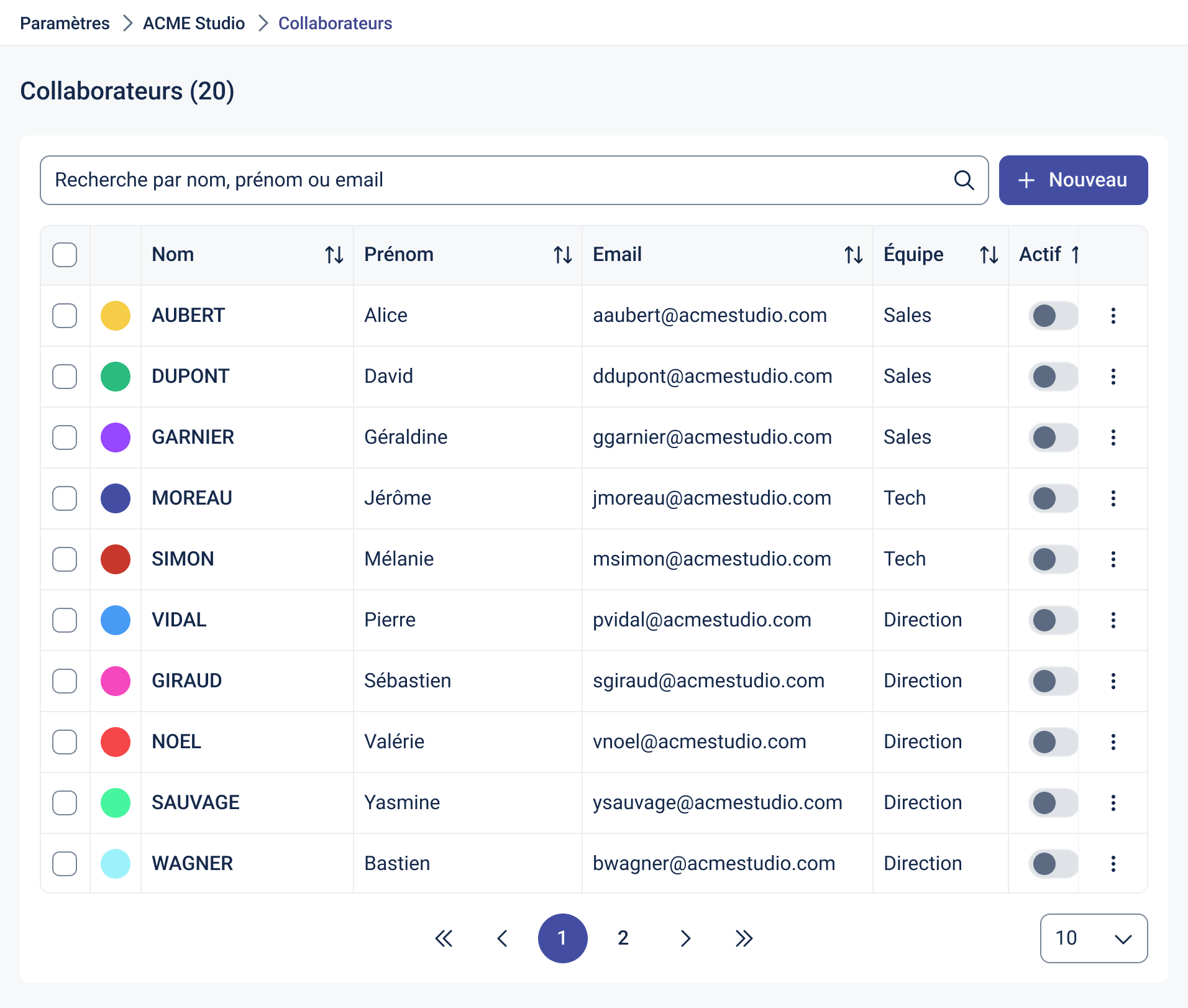
This screen displays all collaborators linked to your location.
Key Features
- Search bar: by name, first name, or email
- Email and Team clearly visible
- Active/inactive toggle: to enable or disable a collaborator
- “New” button: to add a new collaborator
Tip
The color dot helps visually identify each collaborator in the calendar view.
Collaborator Detail View
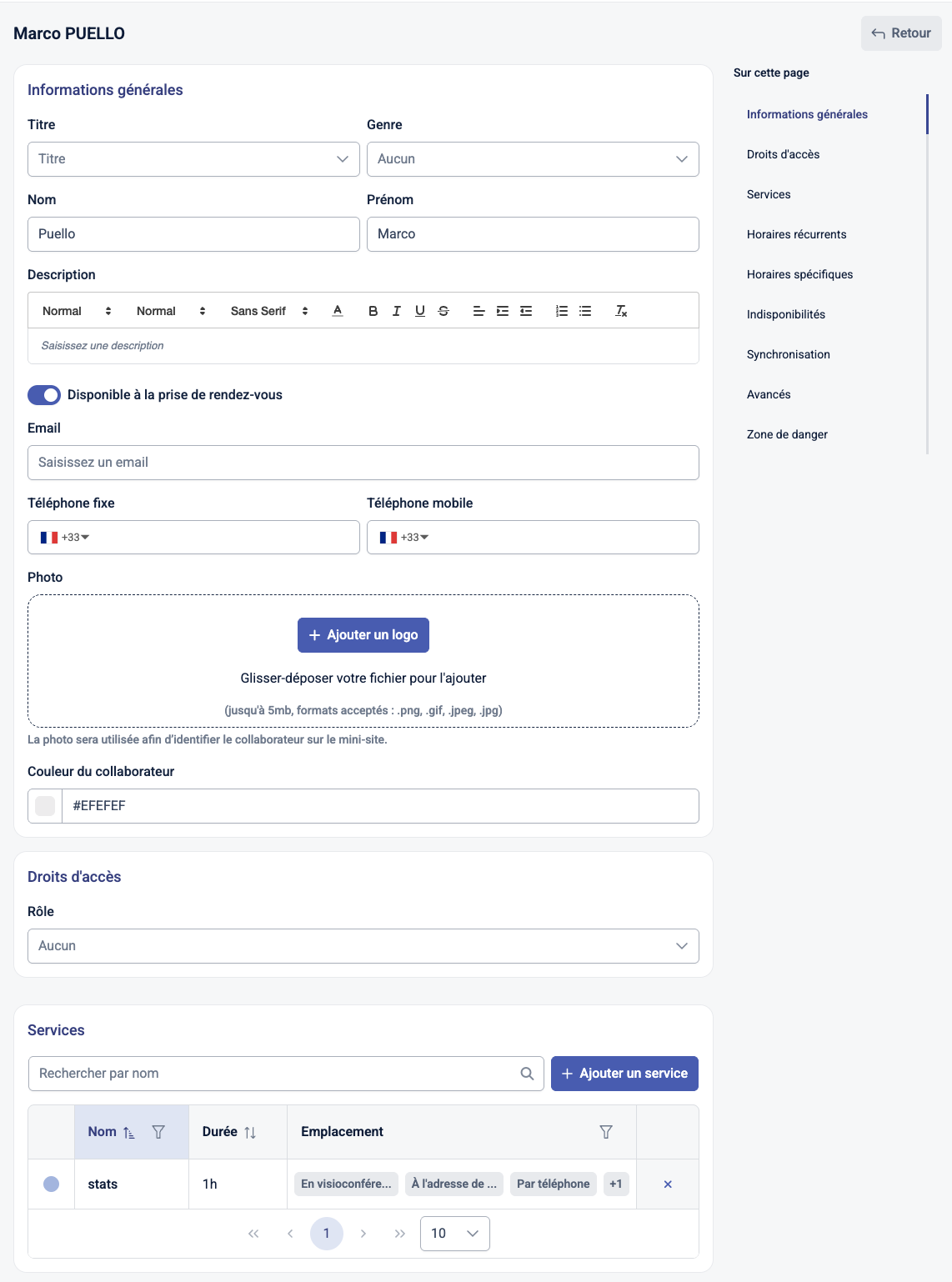
This screen lets you configure the identity, availability, and services associated with a collaborator.
General Information
- Photo: used in the widget and console
- First and Last Name: visible to clients
- Description: short bio or expertise (optional)
- Gender: optional personalization
- Color: used in calendar views
- Team: assign the user to a business team
Address & Contact Info
- Postal Address: used for on-site appointments
- Email: login and contact address
- Phone: landline and mobile (optional)
Access Rights
- Role: defines which features are accessible in the back office
Associated Services
- List of services this collaborator can be booked for
- Add or remove services with the “Add” button
This section offers two modes: Assign services manually (you choose the collaborator's services yourself) or Assign services through their skills (the services matching the selected skills are assigned automatically; the list cannot be edited directly). See Managing skills.
Recurring Hours
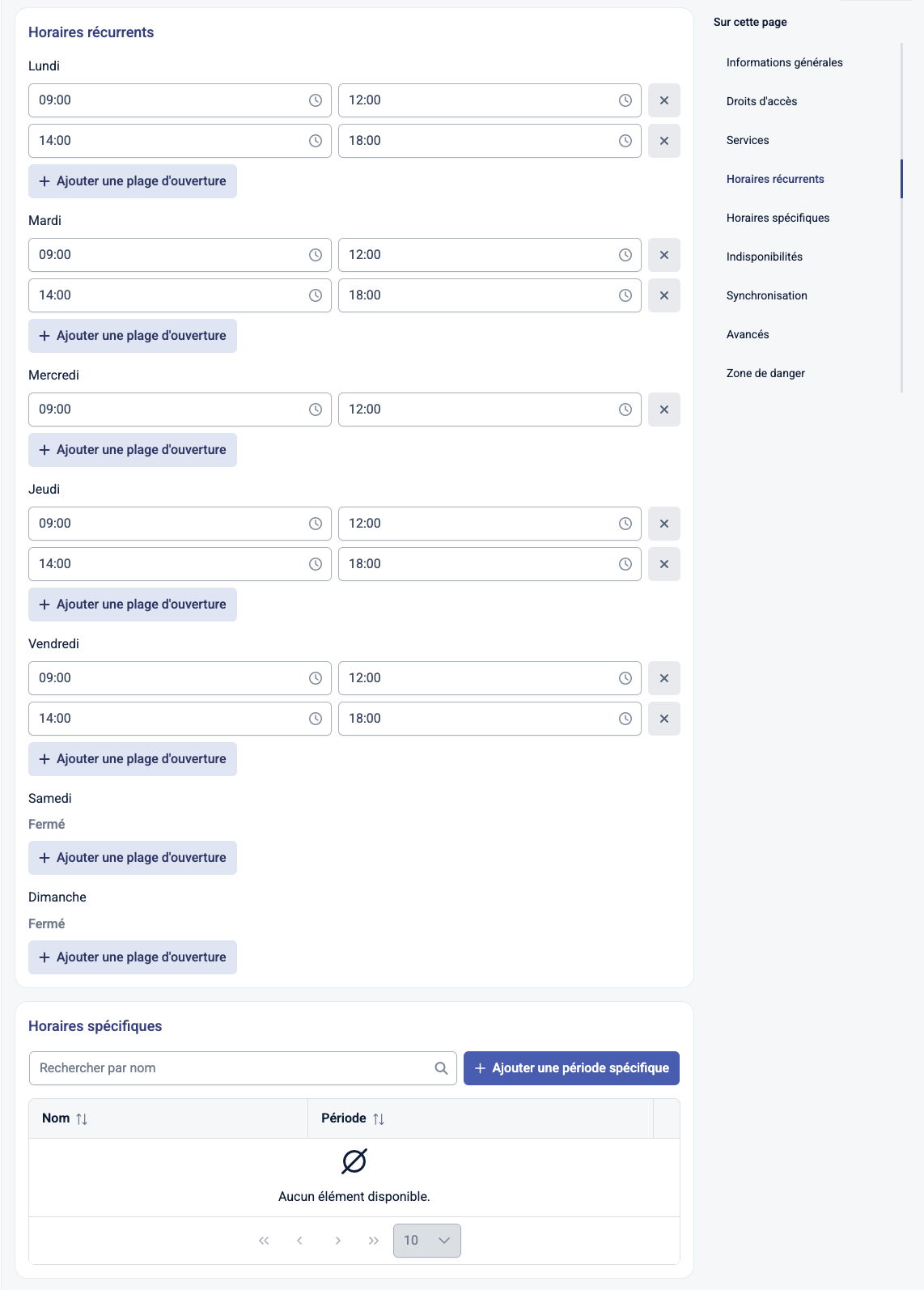
- Define weekly availability per weekday
- Multiple time slots per day are allowed
- Each time slot can be restricted to one or more of the collaborator's services (Service(s) field)
- Closed days = full unavailability
Specific Hours
- Set exceptions (e.g., for holidays or limited weeks)
- Define a date range with custom availability
- As with recurring hours, each time slot can be restricted to specific services
Unavailabilities
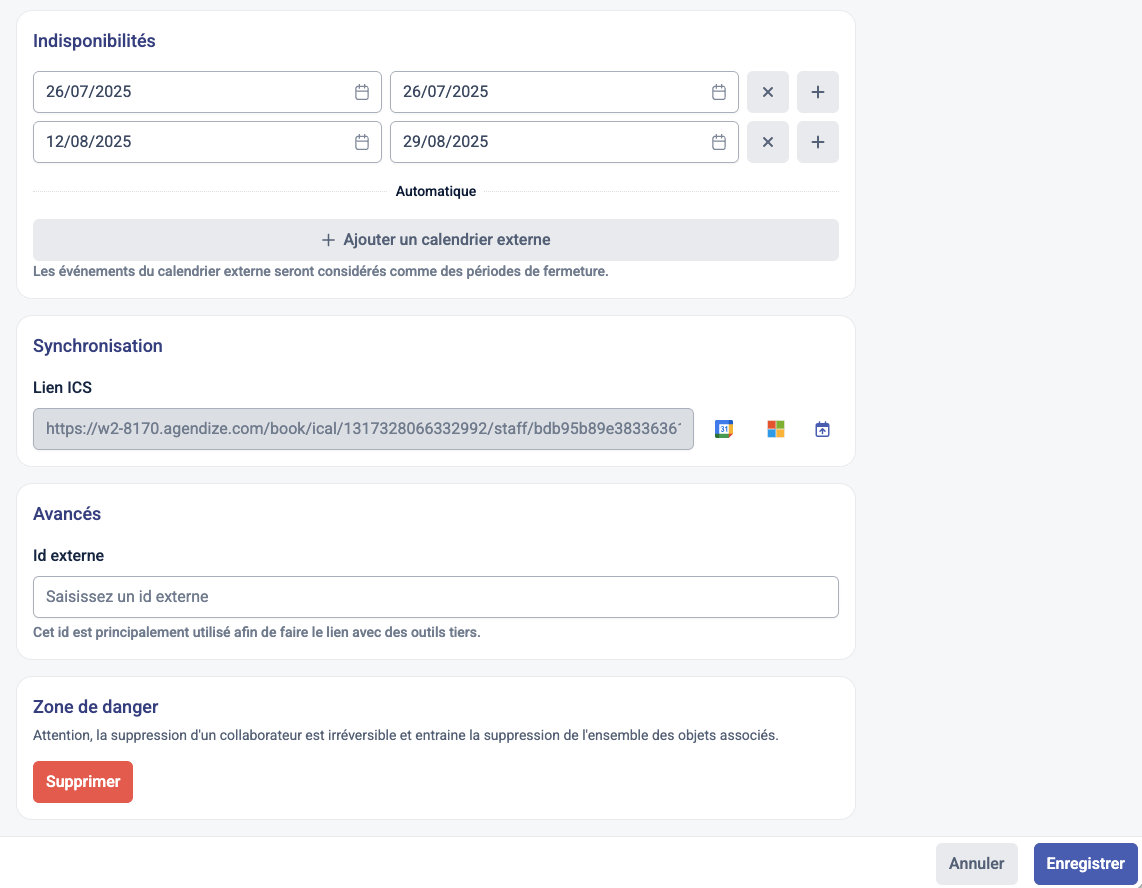
- Mark periods when the collaborator is not bookable at all
Calendar Sync
- Paste an external calendar URL (Google, Outlook, etc.)
- Use the “Invite to sync” button to send an email to the collaborator
Advanced
- External ID: used for third-party integrations (e.g., CRM)
Danger Zone
- Deleting a collaborator is irreversible
- All related records and settings will also be removed
Saving Changes
Click “Save” at the bottom of the screen to confirm your updates.
Need Help?
If you need further assistance, reach out via your client portal or submit a ticket on Freshdesk.