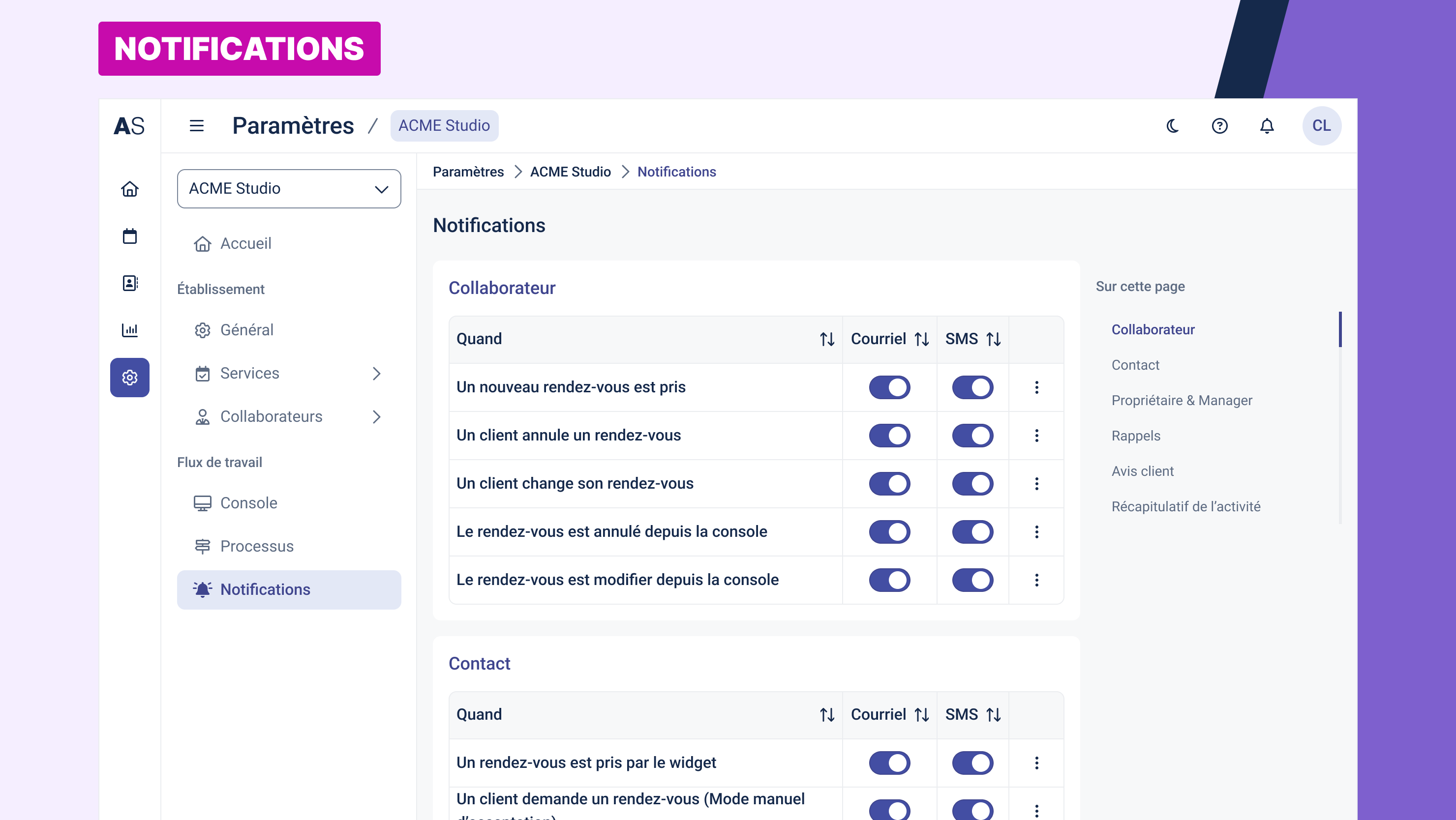
The Notifications page allows you to configure automated messages sent to different participants (clients, staff, managers) based on events related to appointments. You can define the communication channel (email or SMS), the triggering event, and the recipients.
Accessing the Page
From the left-hand menu: Settings > Establishment > Notifications
Notifications for Staff Members
These notifications inform staff members when appointments are booked, updated, or cancelled, helping them stay up to date without logging into the platform.
For each event, you can:
Enable or disable the notification
Choose the delivery method (email and/or SMS)
Available events:
A new appointment is booked
A client cancels an appointment
A client reschedules an appointment
The appointment is cancelled from the console
The appointment is modified from the console
You can customize the content of these notifications in the message templates section.
Notifications for Clients
Client notifications ensure clear and automated communication throughout the appointment lifecycle, including booking confirmation, updates, cancellations, and reminders.
Available events:
An appointment is booked via the widget
A client requests an appointment (manual approval mode)
An appointment is booked from the back office
The client changes or cancels an appointment
The appointment is modified or cancelled from the console
The appointment is accepted or declined (manual approval mode)
The appointment is marked as completed
The appointment is marked as no-show
The appointment requires mandatory payment confirmation
A similar time slot is found
A time slot becomes available
Sender email settings:
You can choose to send emails from a
no-replyaddress or from the assigned staff member’s email.
Notifications for the Owner or Manager
These notifications help managers or account owners stay informed of scheduling activity across their location or team.
Configurable events:
A new appointment is booked
A client cancels an appointment
A client reschedules an appointment
An appointment is declined (manual approval)
An appointment is modified or cancelled from the console
To enable these notifications, make sure a valid email address and mobile number are provided.
Client Appointment Reminders
Reminders reduce no-shows by notifying clients shortly before their appointments. You can set up one or two automatic reminders.
Available settings:
Enable or disable first and second reminders
Choose the notification method (email and/or SMS)
Define the timing (e.g. 1 hour or 24 hours before the appointment)
Option to send the reminder to the assigned staff member as well
Reminders can be disabled for specific services if needed.
Client Feedback Request
Agendize can automatically request feedback from clients after their appointments by sending an email or SMS with a link to a feedback form.
You can choose to enable or disable this feature depending on your needs. It is useful for tracking customer satisfaction and improving service quality.
Daily Activity Summary
You can enable a daily summary email listing all appointments scheduled for the day.
Configuration options:
Choose whether to send the summary to each staff member and/or to the manager
Define the delivery time (e.g. the day before at 07:00)
This summary helps your team prepare for the day. Note that changes to this setting may take up to 24 hours to take effect.
Saving Changes
After making your selections, be sure to click the “Save” button at the bottom of the page. Changes will not be applied unless saved.
Was this article helpful?
That’s Great!
Thank you for your feedback
Sorry! We couldn't be helpful
Thank you for your feedback
Feedback sent
We appreciate your effort and will try to fix the article