Settings · Locations
Accessing Establishments Management
Where to find it
Menu Settings > Establishments
Locations List
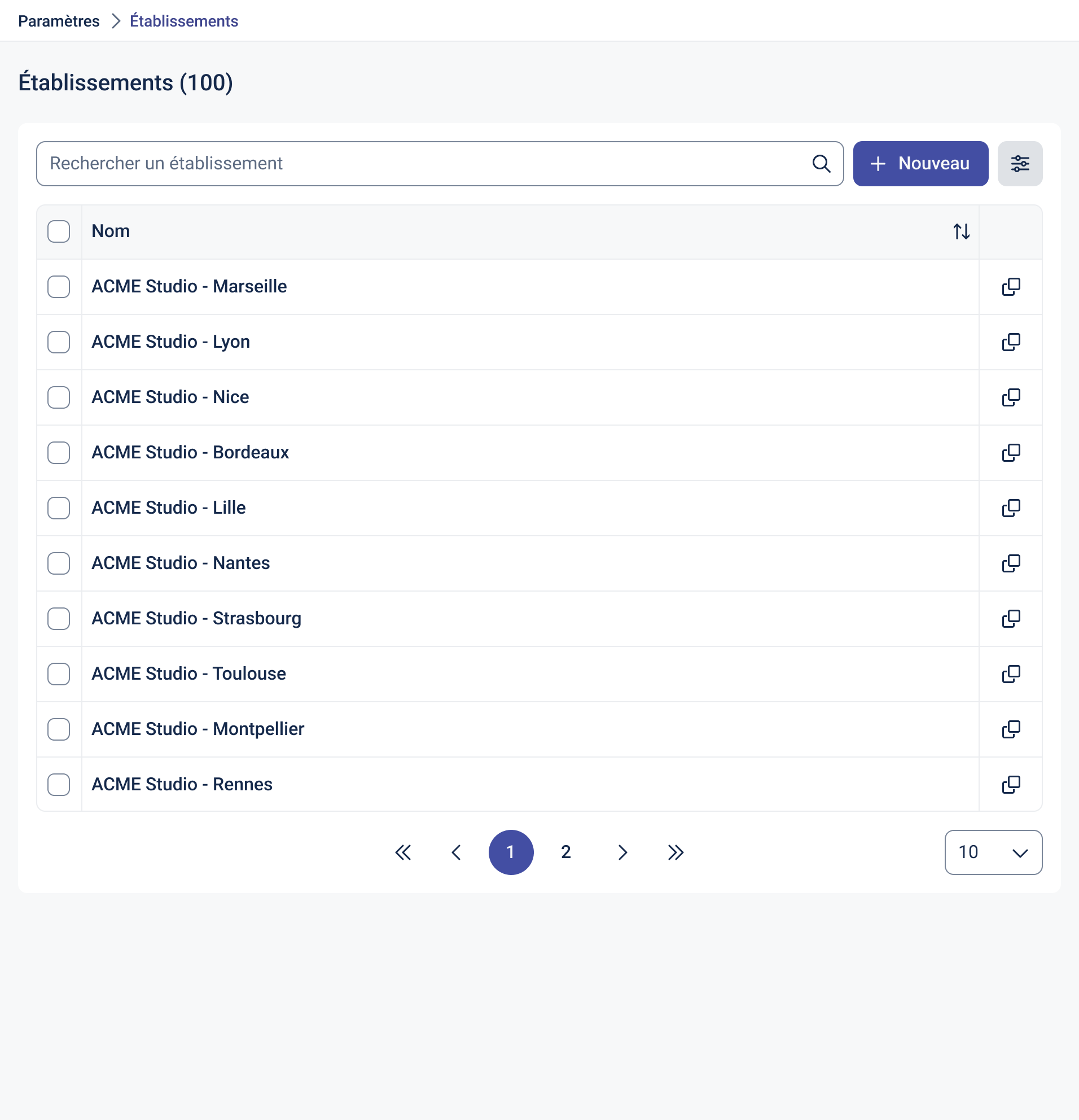
This page displays all your business locations (agencies, offices, stores…).
Key Features
- Search: quickly filter by location name.
- New: create a new location.
- Columns:
- Name (sortable)
- Pagination and page size selector at the bottom.
Tip
Use a clear naming convention (e.g., ACME Studio – City) to make searching and reporting easier.
Location Detail View
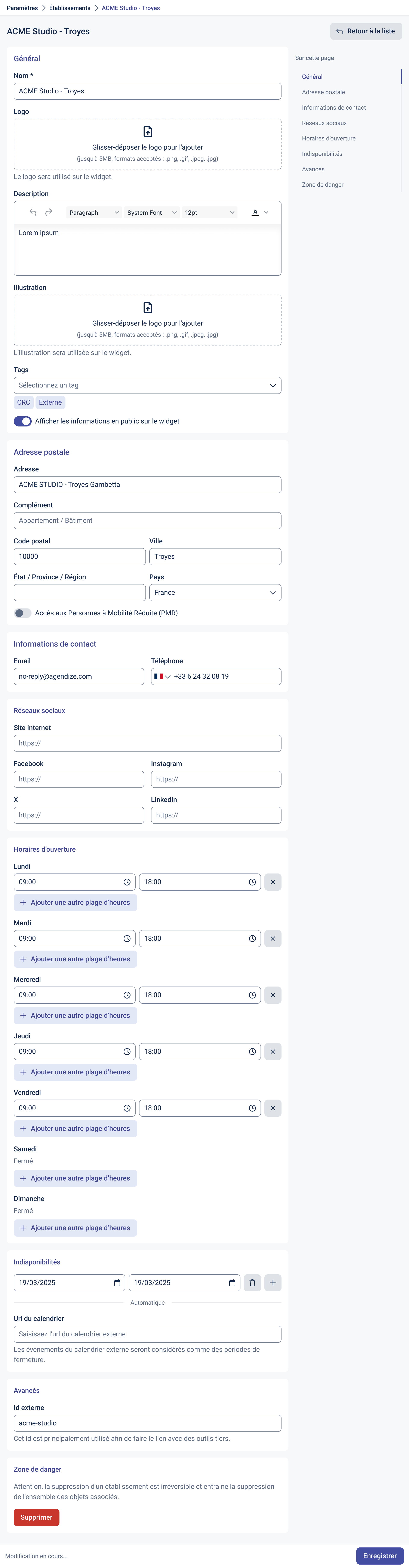
The location detail view allows you to configure the site identity, address, contact details, opening hours, and downtime.
General
- Name: displayed everywhere (widget, back office).
- Logo: image shown in the booking widget (PNG/JPG/GIF ≤ 5 MB).
- Description: optional text to describe the location.
- Illustration: optional visual used in the widget.
- Tags: useful for segmentation/filters (e.g., CRC, External).
- Show information publicly in the widget: display or not the company information on the widget.
Postal Address
- Street address / Additional info (building, floor…)
- ZIP / City, State / Province / Region, Country
- Accessibility (PMR): indicate if the site is accessible for reduced mobility.
Contact Information
- Email (contact or no-reply, depending on your workflow)
- Phone (landline or mobile, can be displayed to clients)
Social Media
- Website
- Facebook, Instagram, X, LinkedIn
Opening Hours
Define the weekly business hours for the location.
- Each day can be set as Open with one or more time slots, or marked as Closed.
- Use Add another time slot to define multiple ranges in the same day.
- These hours are shown to clients and affect availability in the widget (based on process rules).
Downtime / Unavailability
- Add closure periods with start and end dates.
- Events from an external calendar (via URL) can also be treated as downtime if enabled.
- Use + to add and ? to delete specific periods.
Public holidays
- Turn on Enable public holidays to automatically close online booking on official public holidays, without having to enter them.
- Country (required once the option is on): select the location's country. Its national public holidays are applied.
- Administrative subdivisions (optional): select one or more subdivisions (department, region, Land, canton… depending on the country) to add their own public holidays.
- Local holidays specific to a town are not included: add them under Downtime / Unavailability.
Advanced
- External ID: technical identifier used to connect the location with third-party tools (API/CRM/ETL).
Danger Zone
- Delete the location: an irreversible action that also removes all related data.
Saving Changes
Click “Save” at the bottom right to apply your updates.
Best Practices
- Always include a logo and short description to improve conversion on the booking widget.
- Keep opening hours and closure periods up to date (renovations, special closures, local holidays…). For official public holidays, turn on the Public holidays section.
- Add the external calendar URL if closures are managed in a shared agenda.