Online scheduling · Customer appointments
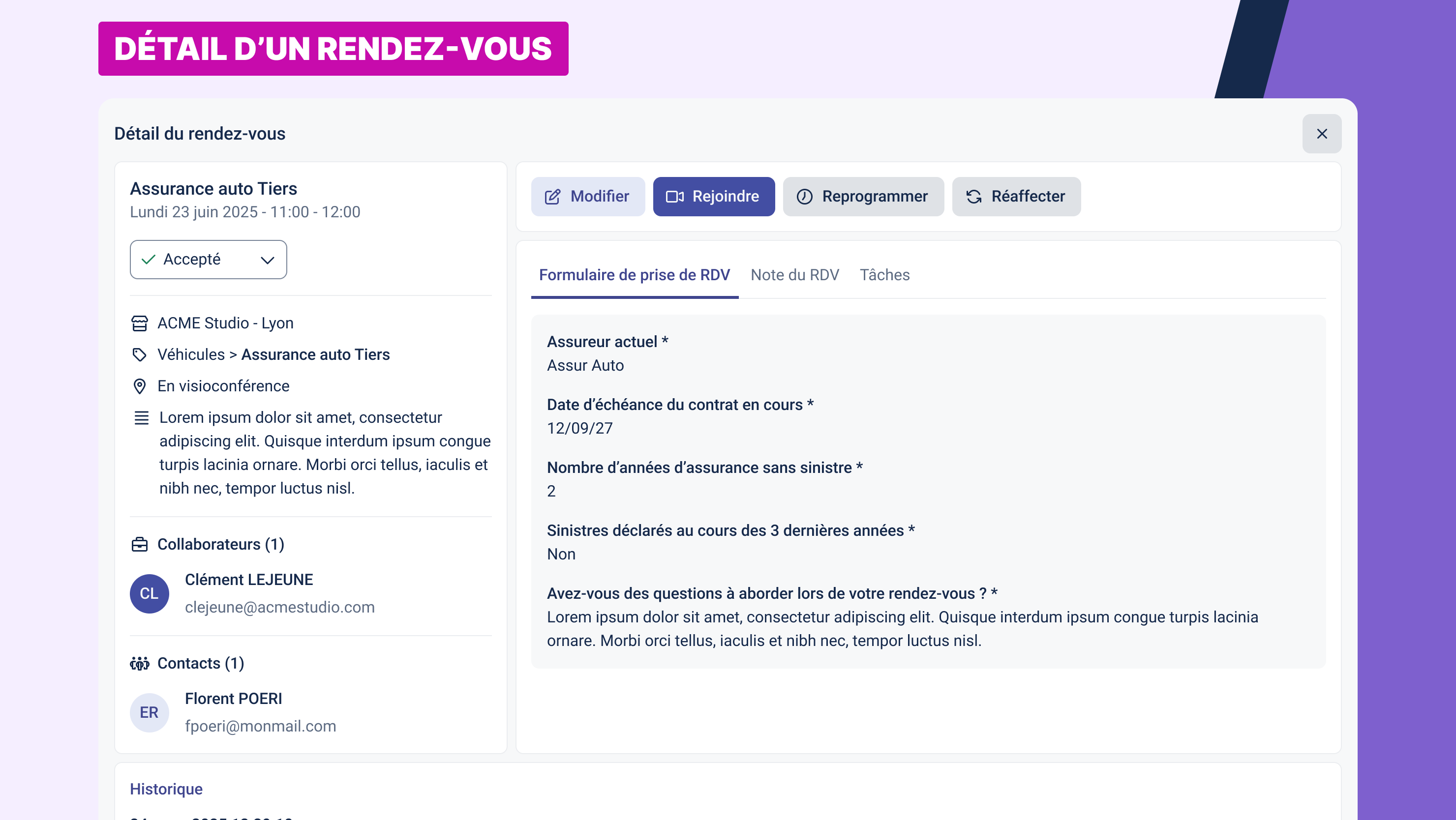
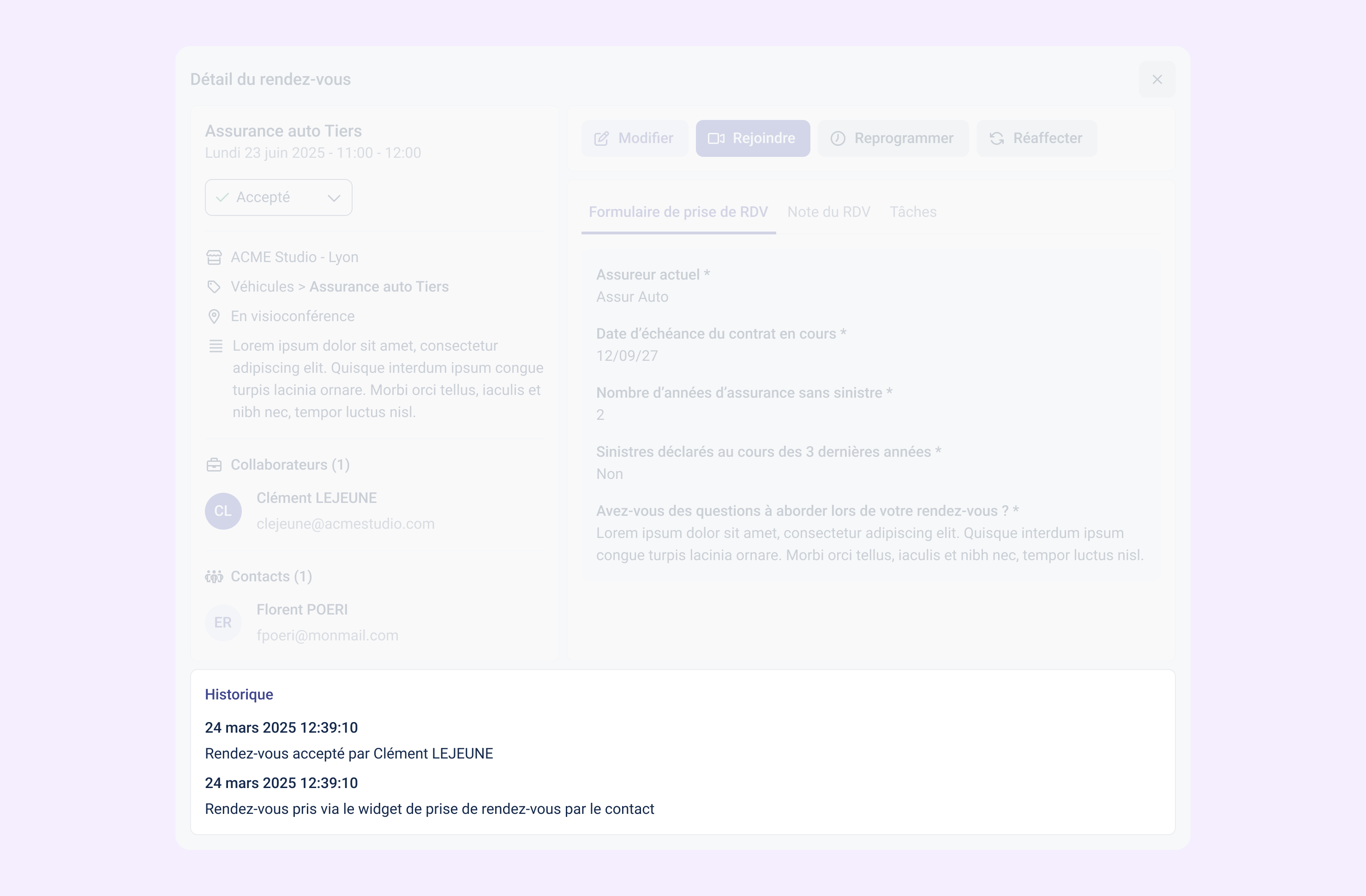
When you click an appointment in your calendar, a full-screen window opens. It gives you access to all the information about the appointment and the key details needed for it to run smoothly.
General information
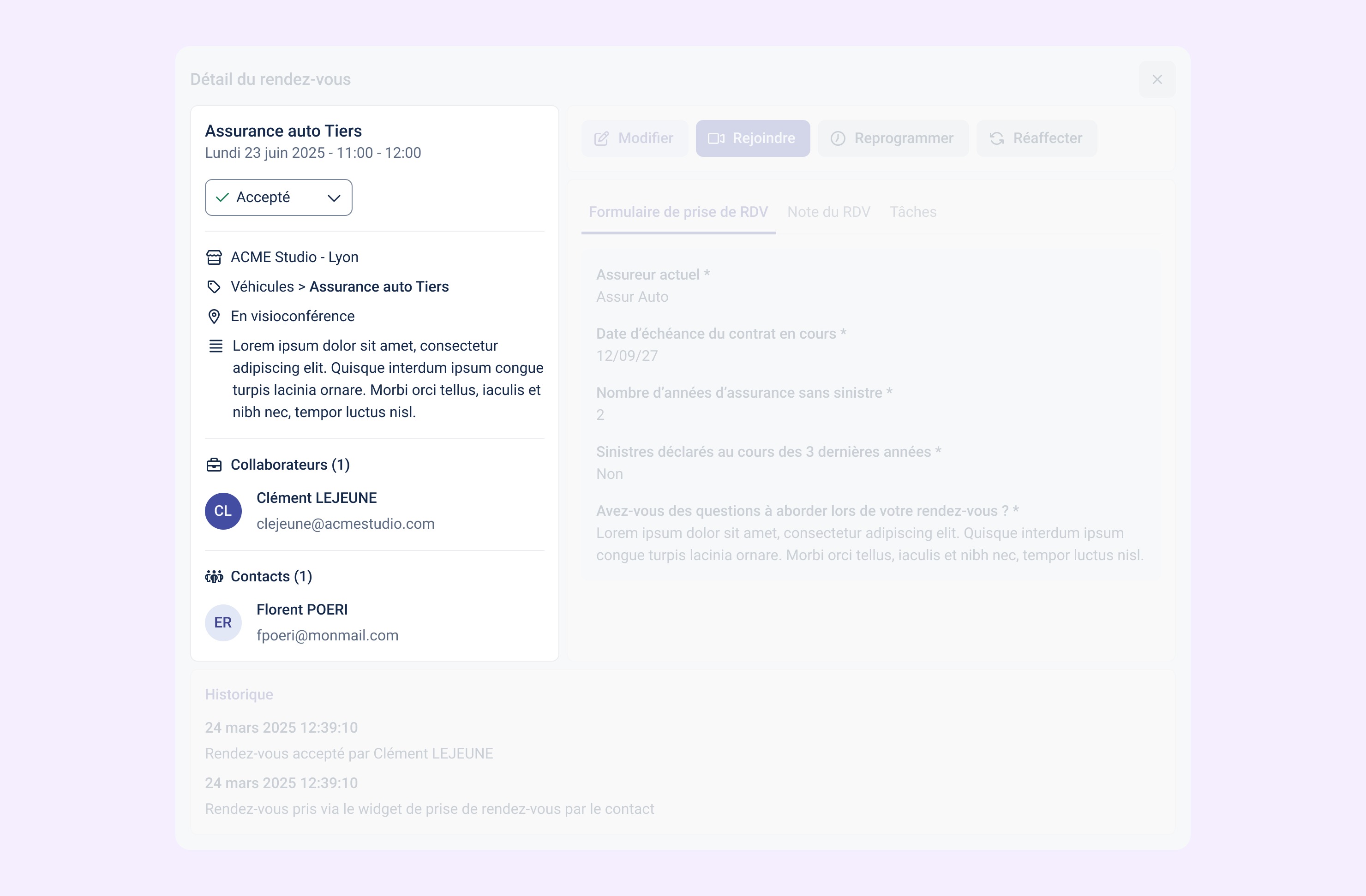
At the top of the screen, you find the main details of the appointment:
- The name of the service
- The date and time of the appointment, shown in your time zone
- The status of the appointment (e.g. Accepted, Pending, Canceled…)
If the status can be changed, you can update it directly from this area.
Otherwise (for example for a completed or canceled appointment), the field is grayed out and cannot be edited.
Context details
On the left side of the screen, several details give you the context of the appointment:
- The location (if you manage several)
- The category and name of the service
- The type of appointment: video call, phone, or in person with the address shown
- Any note attached to the appointment
- The assigned collaborators, with their first name, last name and email
- The customer contact and their details
Booking form
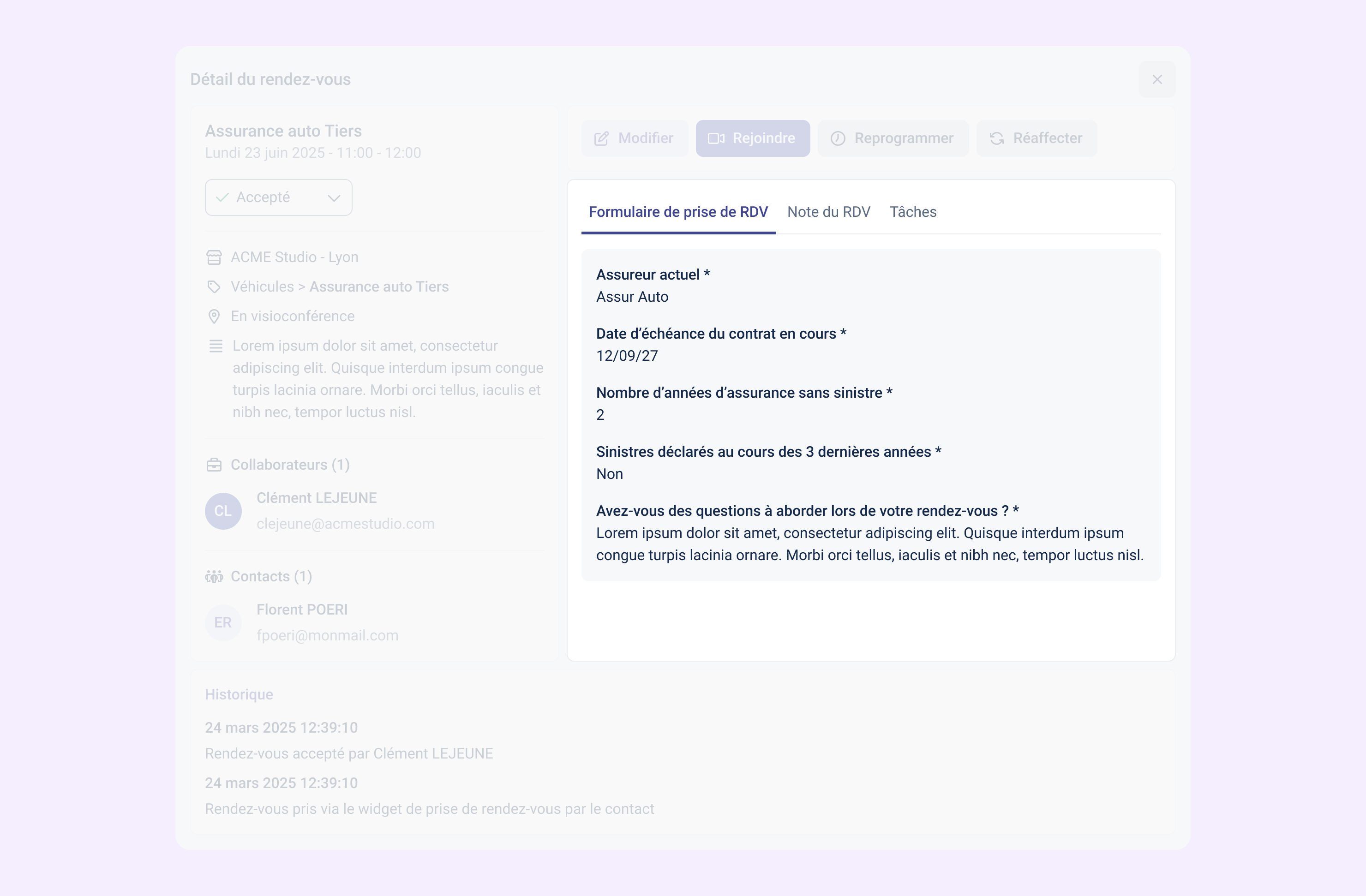
If the customer filled in a form when booking, a tab named Booking form is displayed.
In this tab, you can view the customer's answers. These fields are read-only, and required fields are marked with an asterisk.
If no form is linked to the appointment, this tab is not shown.
Joining a video call appointment
When the appointment takes place by video call, a Join button appears at the top right of the screen.
Clicking this button opens the video call link in a new browser tab.
Acting on the appointment
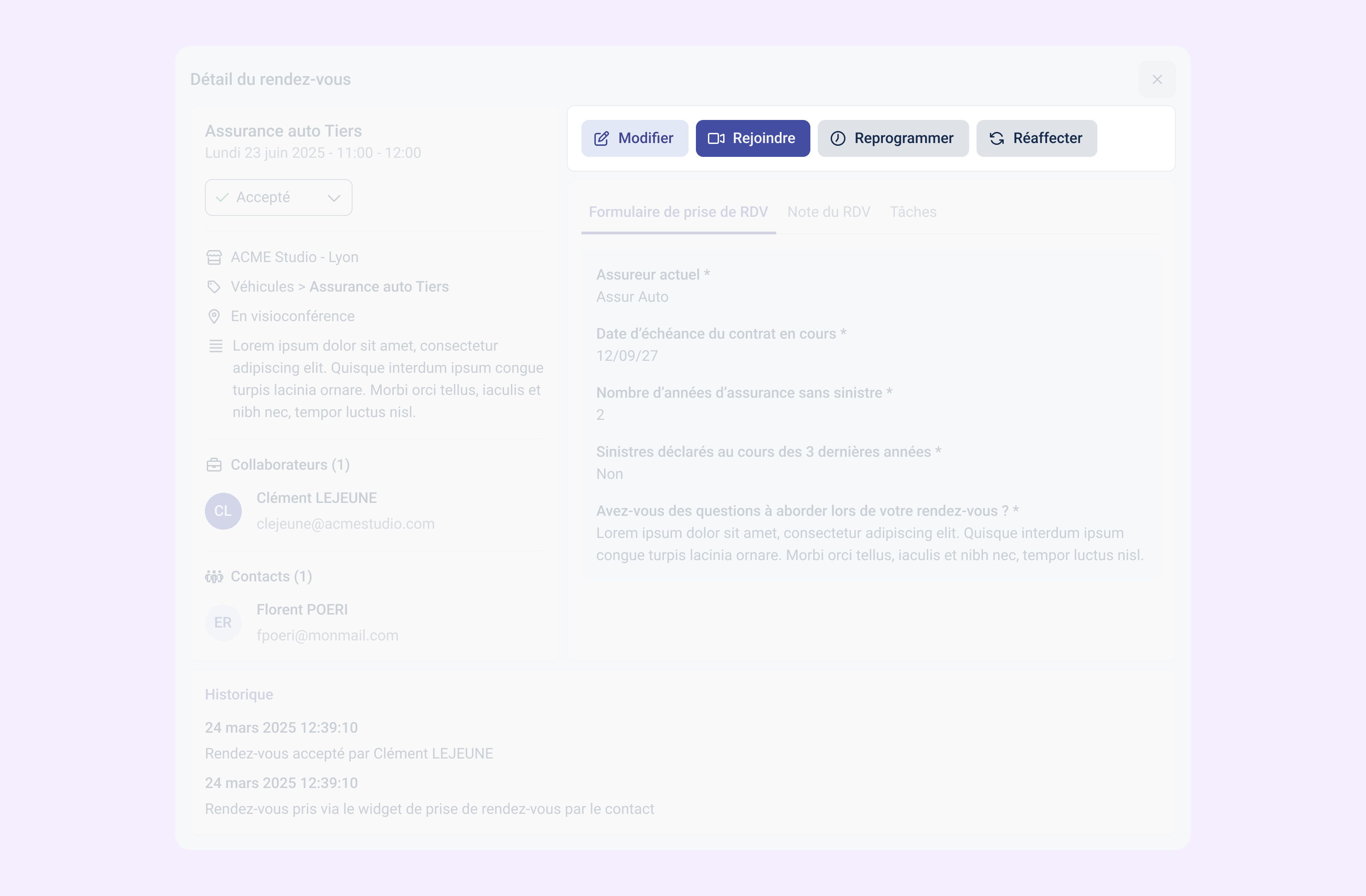
From the detail view, the actions menu lets you change the appointment without going back to the calendar:
- Reschedule: choose a new date and time slot.
- Reassign: give the appointment to another collaborator of the location.
- Edit: update the service, the main collaborator and additional collaborators, as well as the main contact and additional contacts.
- Cancel: cancellation is available in the actions menu of the detail view.
Appointment note
The Appointment note tab, next to the Booking form tab, shows the appointment note and lets you edit it.
Appointment history
At the bottom of the page, the History section lets you follow the actions taken on the appointment.
Each event shows:
- The date and time of the action
- A description of what was done (e.g. “Appointment accepted”, “Appointment booked via the widget”, etc.)
Events are listed from newest to oldest.
Closing the detail window
You can close the window at any time by clicking the cross at the top right.
You are taken back to your calendar, where you were before opening it.