Settings · Workflow
Accessing Notifications
Notifications – Overview
Use this page to configure who receives notifications (via Email and/or SMS) and when. The screen is divided into sections for Collaborator, Contact (Client), Owner & Manager, Reminders, Client Feedback, and a daily Activity Summary.
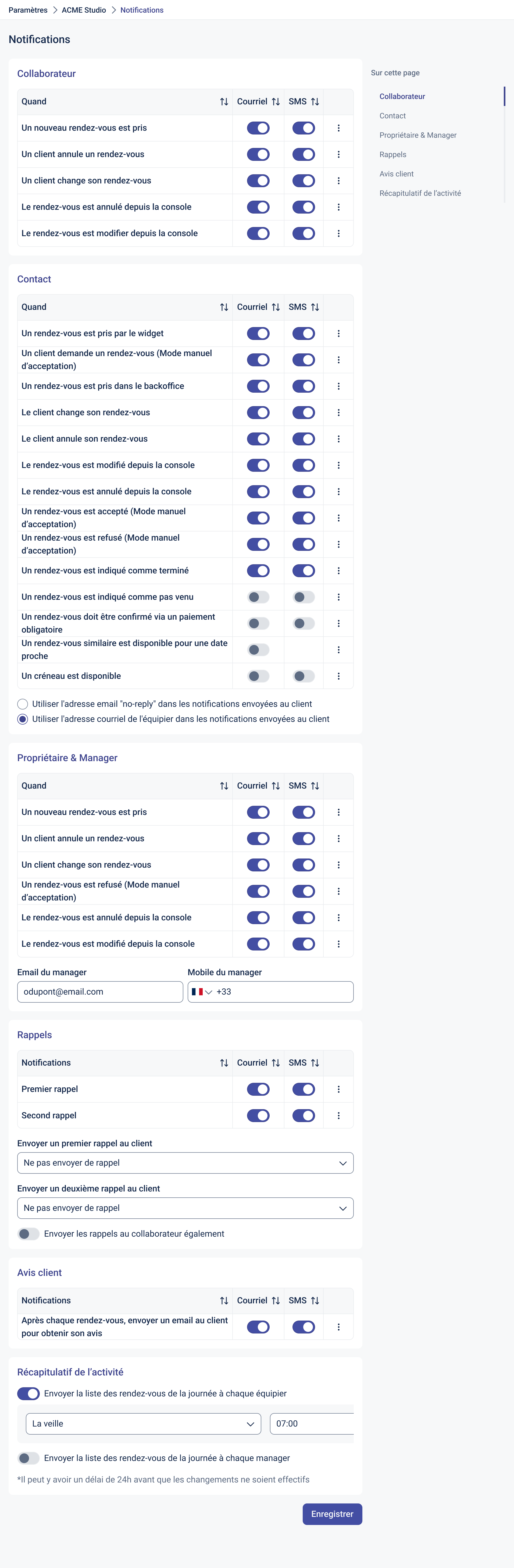
Collaborator
Choose which events trigger alerts for the assigned staff member.
- A new appointment is booked
- A client cancels
- A client reschedules
- Appointment cancelled from console
- Appointment modified from console
For each line, enable Email and/or SMS using the toggles.
Contact (Client)
Set which messages your client receives.
- Appointment booked on the widget
- Appointment request submitted (manual approval mode)
- Appointment booked from back office
- Client rescheduled
- Client cancelled
- Appointment modified from console
- Appointment cancelled from console
- Appointment accepted (manual approval mode)
- Appointment declined (manual approval mode)
- Appointment marked as completed
- Appointment marked as no-show
- Appointment must be confirmed by payment
- Similar earlier slot available (waitlist notification)
- Slot available (general availability notification)
Sender options (bottom of the section):
- Use the “no-reply” email address for client notifications
- Use the staff member’s email address for client notifications
Owner & Manager
Notify the business owner/manager of key events (enable Email and/or SMS per line):
- New appointment booked
- Client cancelled
- Client rescheduled
- Appointment declined (manual approval mode)
- Appointment cancelled from console
- Appointment modified from console
Specify the Manager’s email and Manager’s mobile for SMS alerts.
Reminders
Automated reminders sent before the appointment.
- First reminder – enable Email and/or SMS
- Second reminder – enable Email and/or SMS
Scheduling options:
- Send a first reminder to the client – choose the timing (e.g., 24h before)
- Send a second reminder – choose the timing (or disable)
- Also send reminders to the collaborator (toggle)
Client Feedback
After each appointment, send a message to collect the client’s feedback.
- After each appointment, email the client to request feedback – enable Email and/or SMS if available
Daily Activity Summary
Send a daily summary of the day’s appointments.
- Send the daily appointment list to each staff member – choose when (Day before / Same day) and time (e.g., 07:00)
- Send the daily appointment list to each manager (optional)
*Changes to daily summaries may take up to 24 hours to take effect.
Best Practices
- Enable client reminders (at least one) to reduce no-shows.
- Use staff daily summaries so everyone starts the day aligned.
- In manual approval mode, enable request / accept / decline notifications for both client and manager.
- If replies should not be monitored, select the no-reply sender. Otherwise, use the staff email for a more personal touch.
Saving
Click “Save” to apply your notification settings.