Automations
The Automations module lets you automatically trigger actions (sending an email or SMS, adding a tag, calling a watcher) when something happens in Agendize: an appointment is booked, an event registration is recorded, a form is submitted… This guide covers the module's three tabs: Scenario, Messages and Logs.
Opening the module
In the side menu, click Automations (lightning icon). The module opens on the Scenario tab; the Messages and Logs tabs appear just below in the menu.
The module can also be reached from Settings, Workflow section, Automations tile.
Scenario tab: your automations
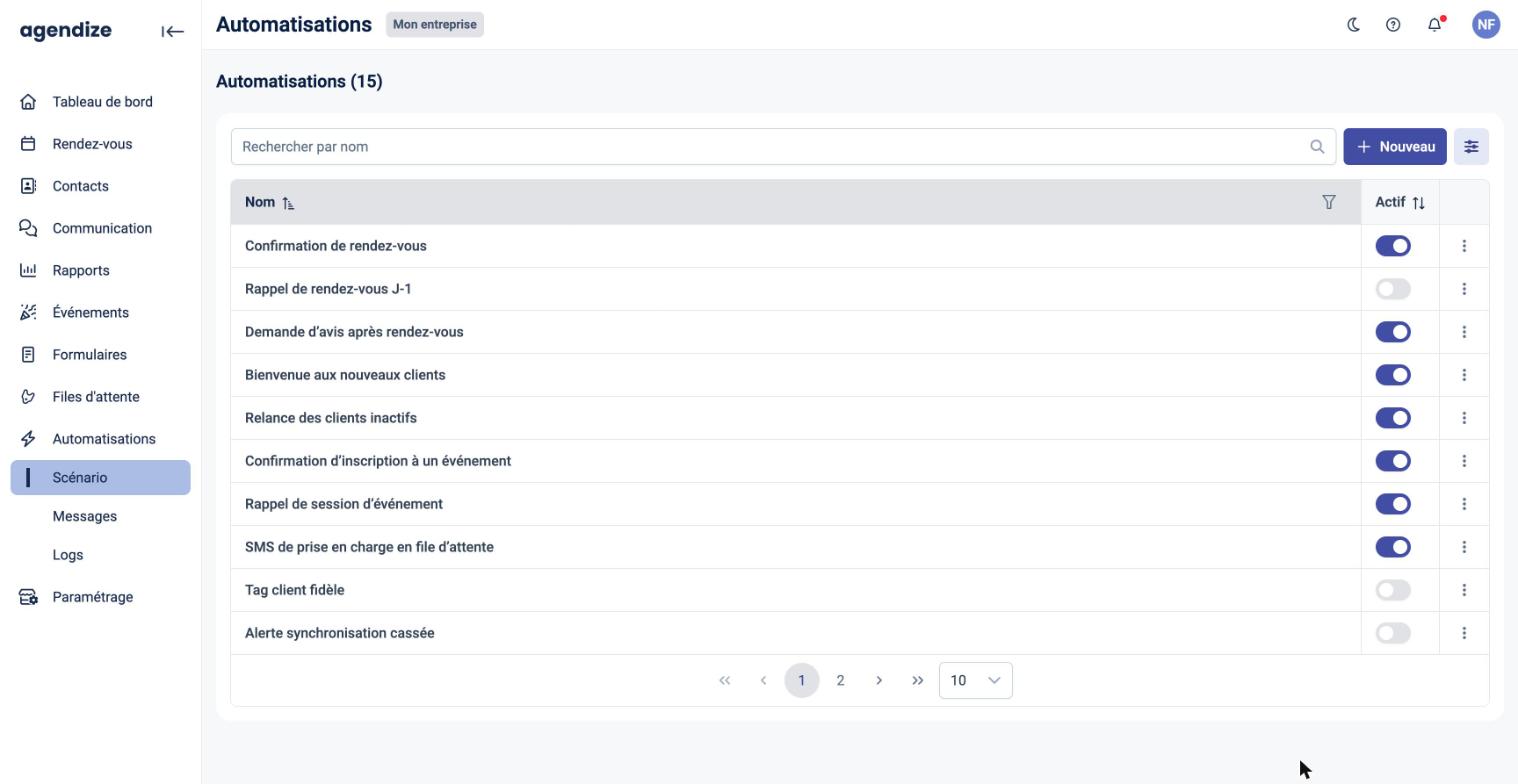
The tab lists your automations with their total count.
- Search by name: filters the list.
- Active column: turn an automation on or off directly from the list. An inactive automation is kept but no longer runs.
- Click a row to open and edit the automation.
- ⋮ menu: Delete the automation (a confirmation is requested).
- + New: creates a new automation.
Creating an automation
- In the Scenario tab, click + New.
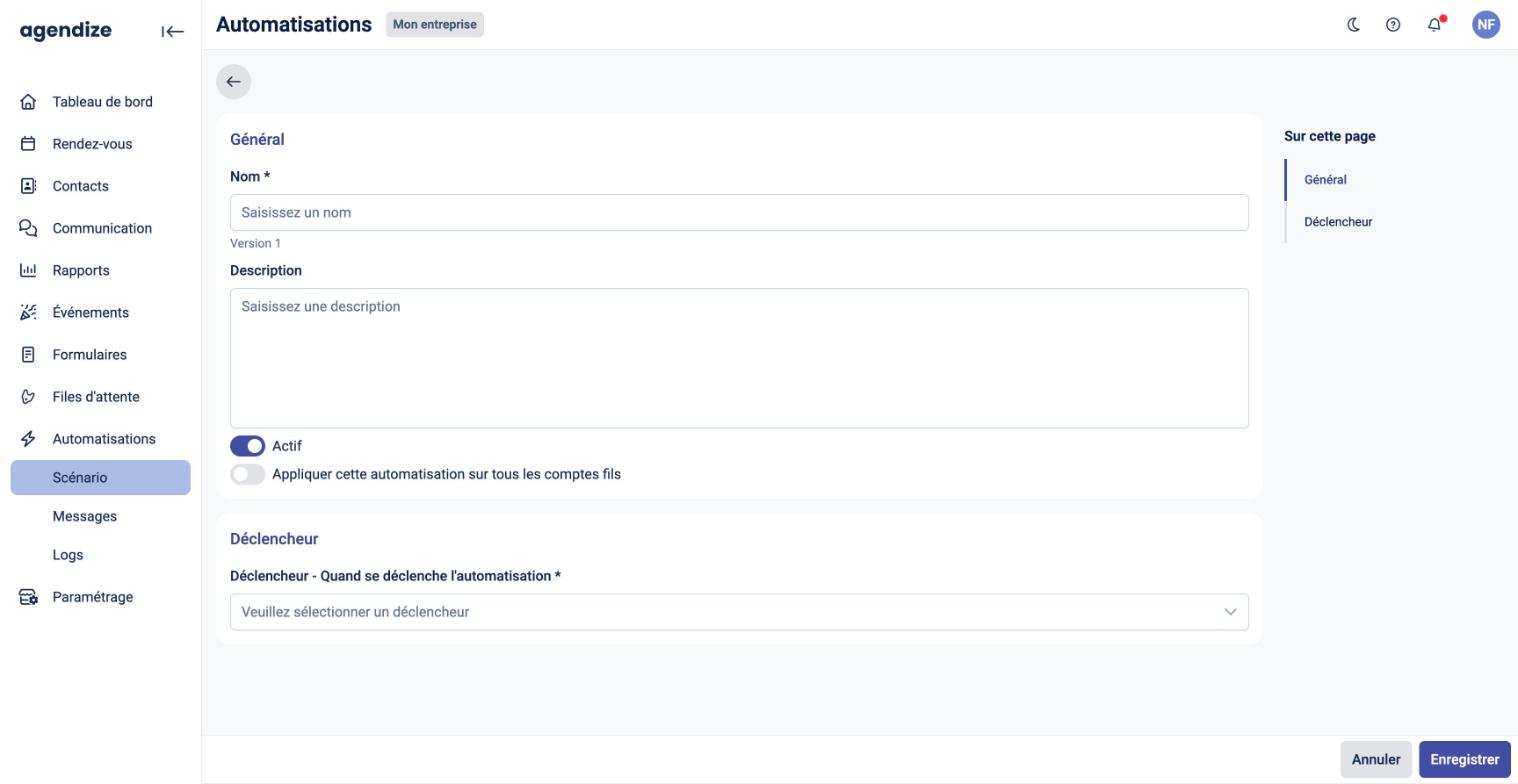
- General section: enter the Name (required) and, if needed, a Description. Keep Active on so the automation runs as soon as it is saved. If you manage a network, Apply this automation to all child accounts deploys it to all your child accounts.
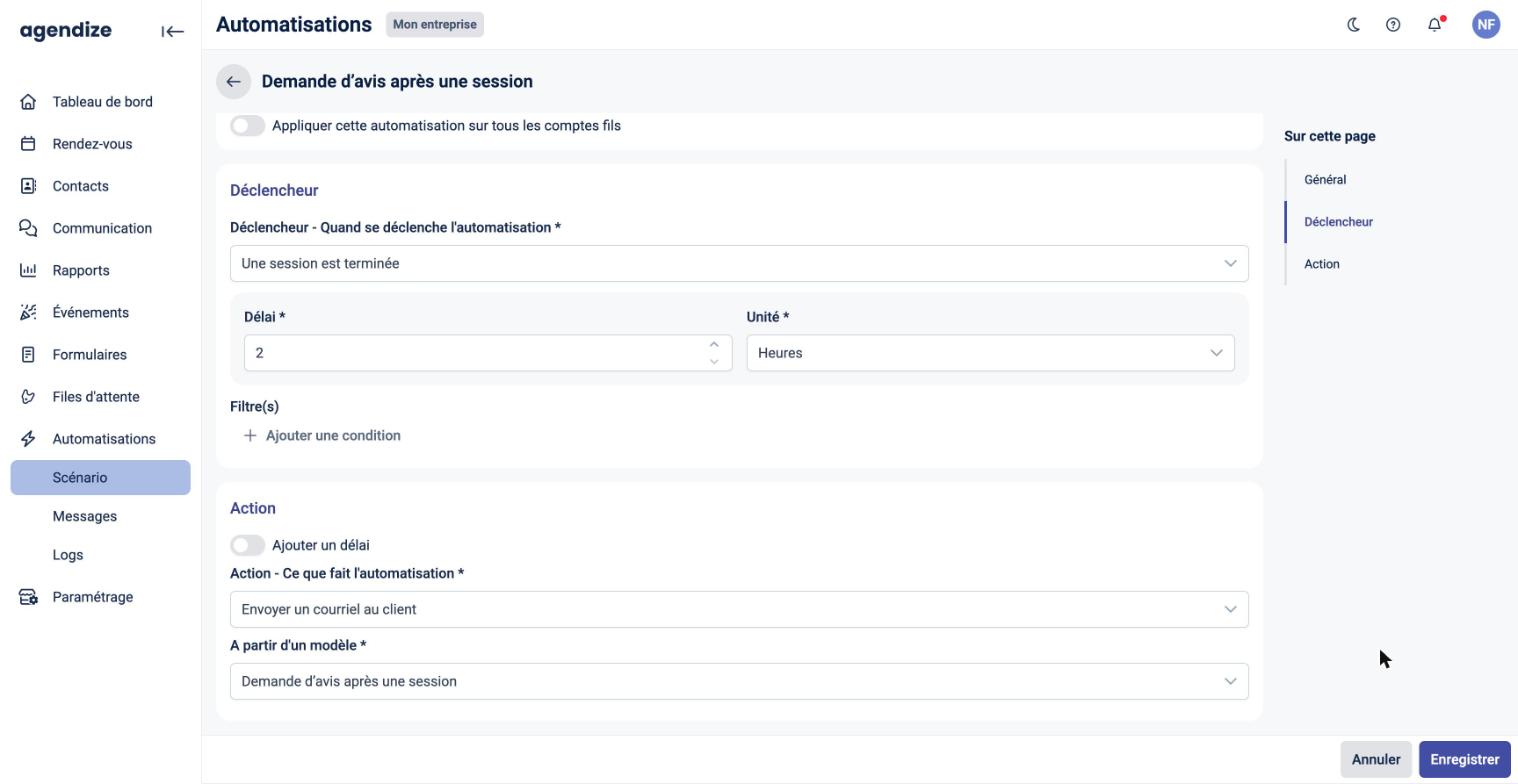
- Trigger section: choose the event that starts the automation. Depending on the trigger, a Delay and a Unit may be required.
- Optional: under Filter(s), click Add a condition to run the automation only in specific cases (choose a field, an operator and a value).
- Action section: choose what the automation does. Turn on Add a delay if the action should be postponed.
- Click Save at the bottom right of the page.
Available triggers
- Appointments: new appointment booked, modified, cancelled, rescheduled, reassigned, accepted; reminder sent; appointment starting; end time passed; appointment marked as completed; status change.
- Events: new registration, registration cancelled, new waiting-list registration, session starting or ending.
- Queue: a client has been served.
- Other: a client or a staff member has been created; a form has been submitted or a form response has changed status; a user has connected or disconnected their account from an online service; the synchronization with an online connector is broken.
Available actions
- Send an email to the client or Send an email to the staff member: the content is chosen from the messages of the Messages tab.
- Send an SMS to the client.
- Add a tag to the client.
- Send a watch: calls a watcher set up for your account (see Watchers / Webhooks).
Messages tab: your automation emails
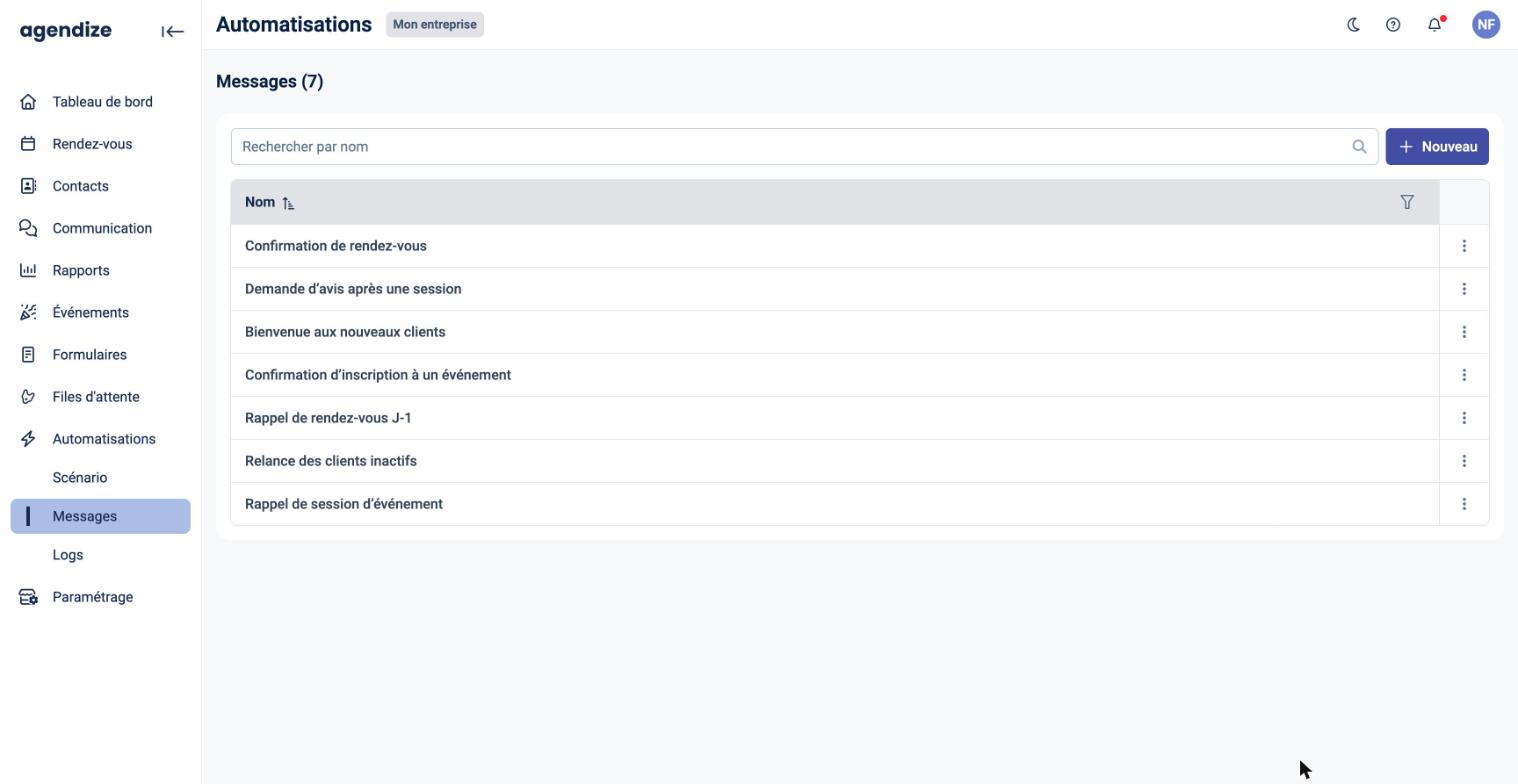
The Messages tab holds the emails used by your automations. Email actions only offer the messages in this list.
- Search by name: filters the list.
- Click a row to edit the message.
- ⋮ menu: Delete the message (a confirmation is requested).
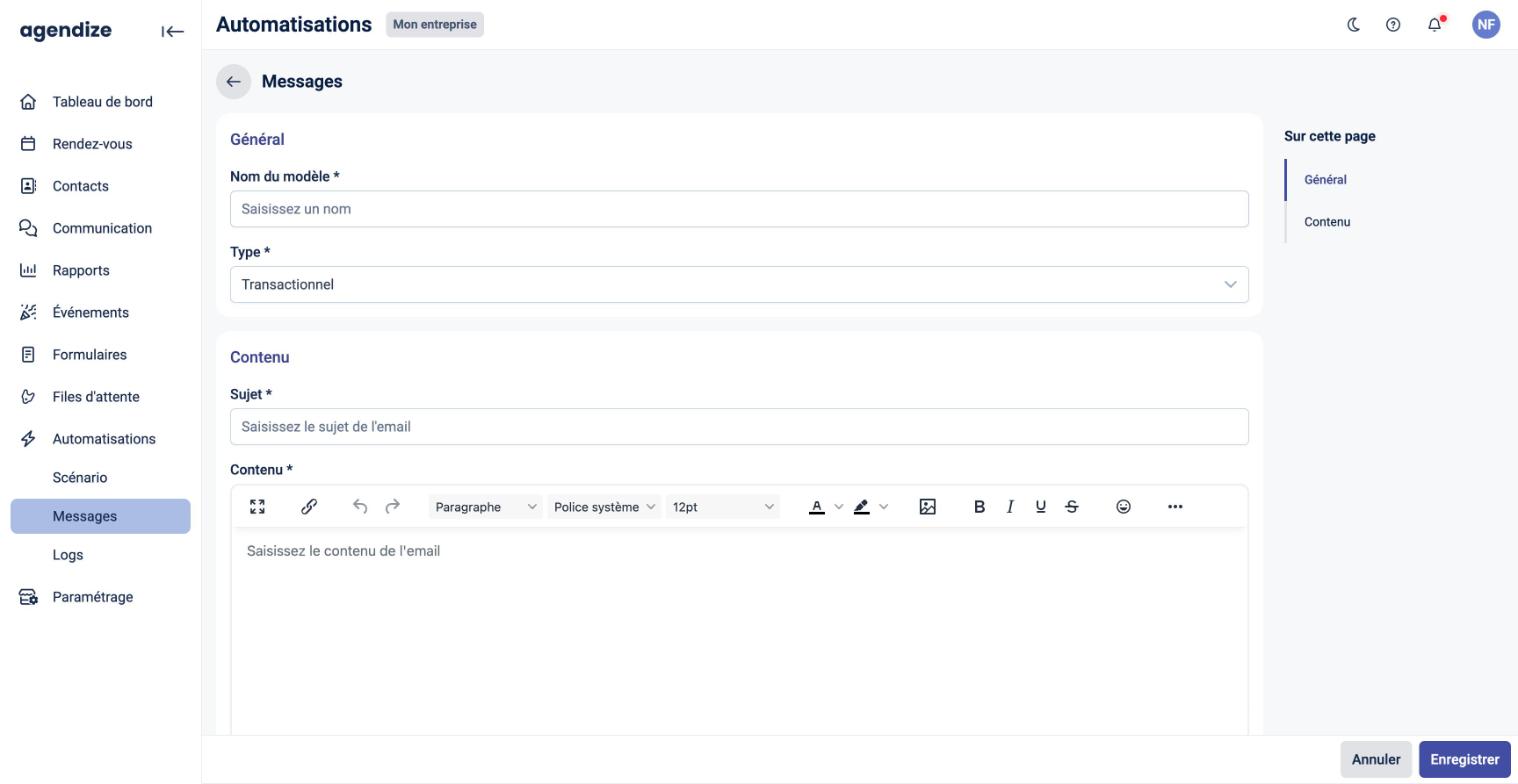
Creating a message
- In the Messages tab, click + New.
- General section: enter the Template name and choose the Type:
- Transactional (default): email related to the service provided (confirmation, follow-up…). It is sent without an unsubscribe link, regardless of the contact's marketing consent.
- Marketing: an unsubscribe link is added and the email is only sent to contacts who gave their marketing consent.
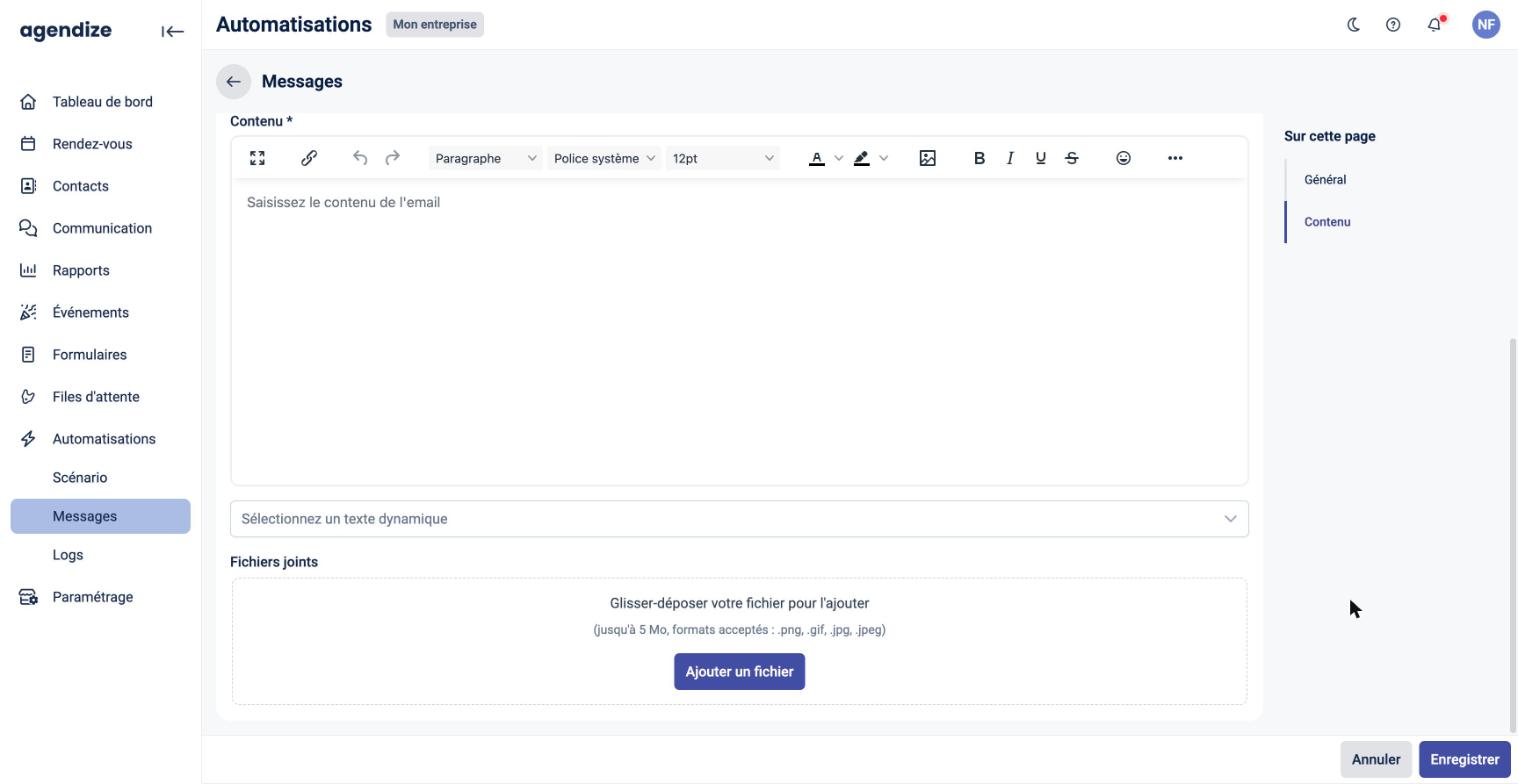
- Content section: enter the email Subject and Content using the formatting editor.
- To personalize the email, open Select a dynamic text and choose the data to insert (contact name, appointment date…). Dynamic texts are the same as in the Communication module.
- Optional: add Attachments by drag and drop or with Add a file (.png, .gif, .jpg, .jpeg, up to 5 MB per file).
- Click Save.
Logs tab: execution history
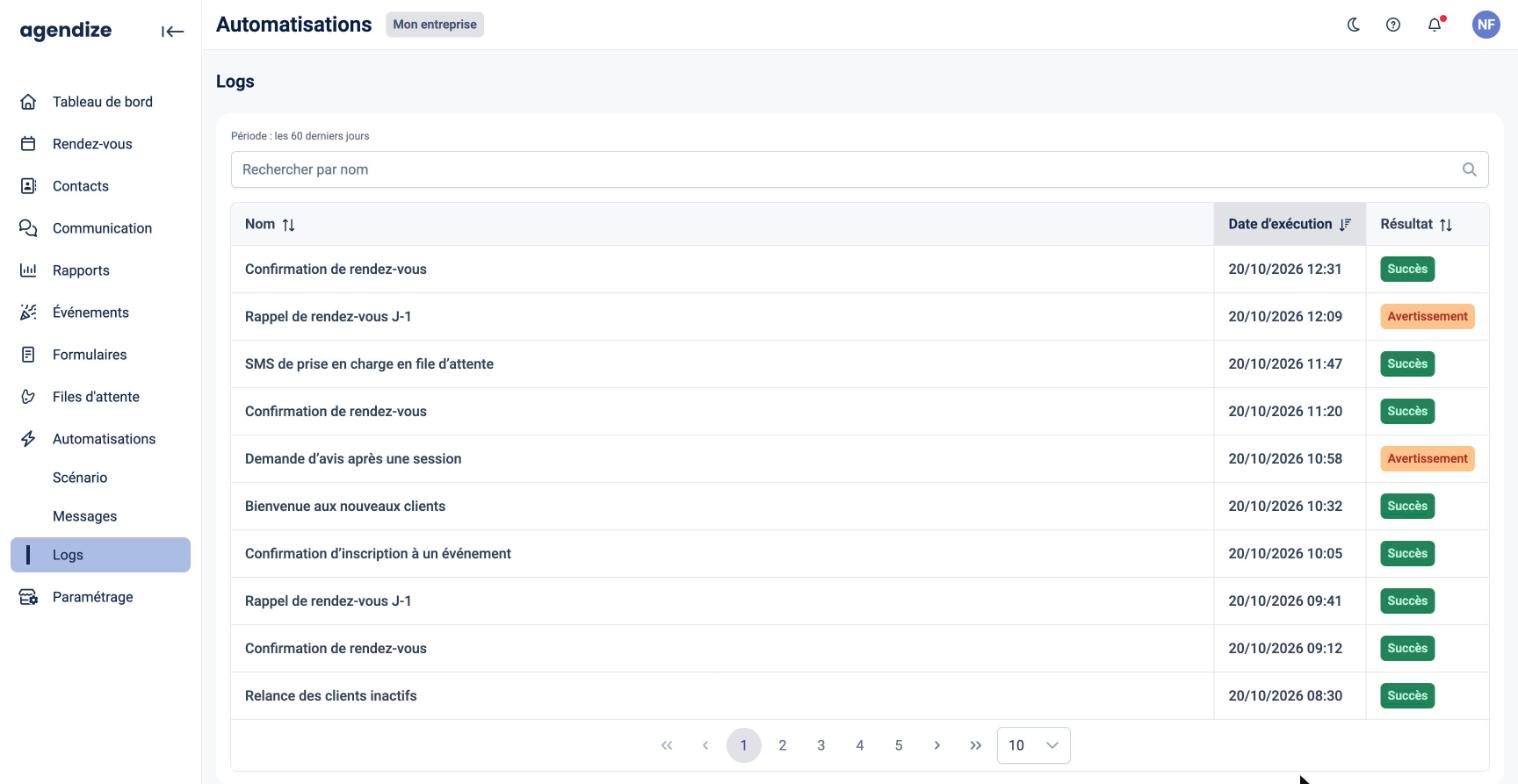
The Logs tab lists your automation runs over the last 60 days, with their Name, Execution date and Result:
- Success: the action was carried out.
- Warning: the run completed with a warning.
- Failed: the action could not be carried out.
Use Search by name to find the runs of an automation, and click the column headers to sort the list.